


After activation, a TruePlayer item appears in your WordPress left sidebar with four sections:
TruePlayer → Dashboard · Media · Presets · Settings
A fifth screen, Analytics, opens from any individual video rather than from the menu.
TruePlayer’s admin is a single fast application. Moving between sections doesn’t reload the page, and if you have unsaved changes, it will warn you before you leave.
Dashboard
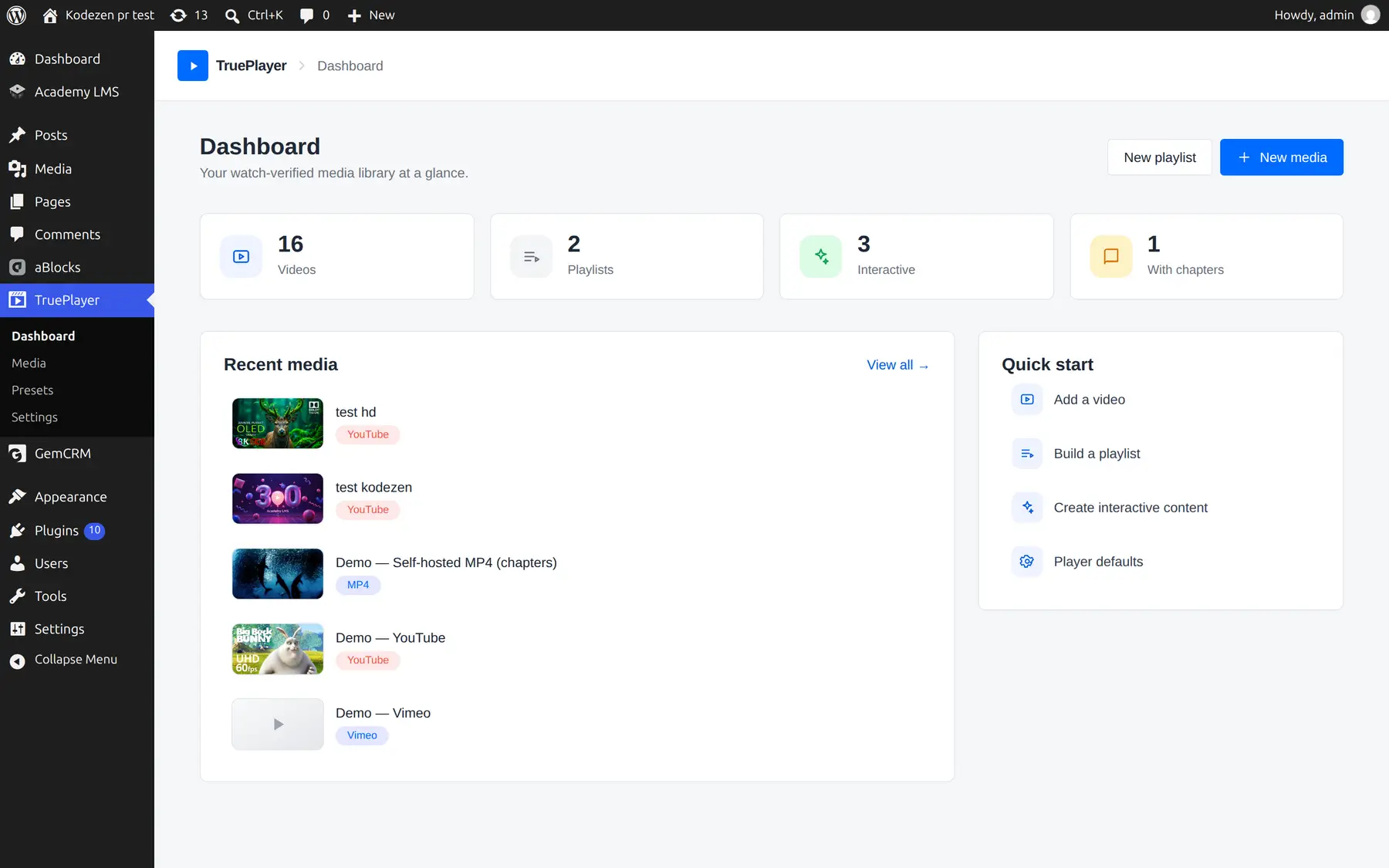
Your landing screen. It shows:
- Recent media — the items you worked on most recently, so you can jump straight back in
- Create buttons — start a new media item or playlist without going through the library
- Quick start — links to the things most people need first
Media
Your library. Every video, playlist, and interactive item lives here.
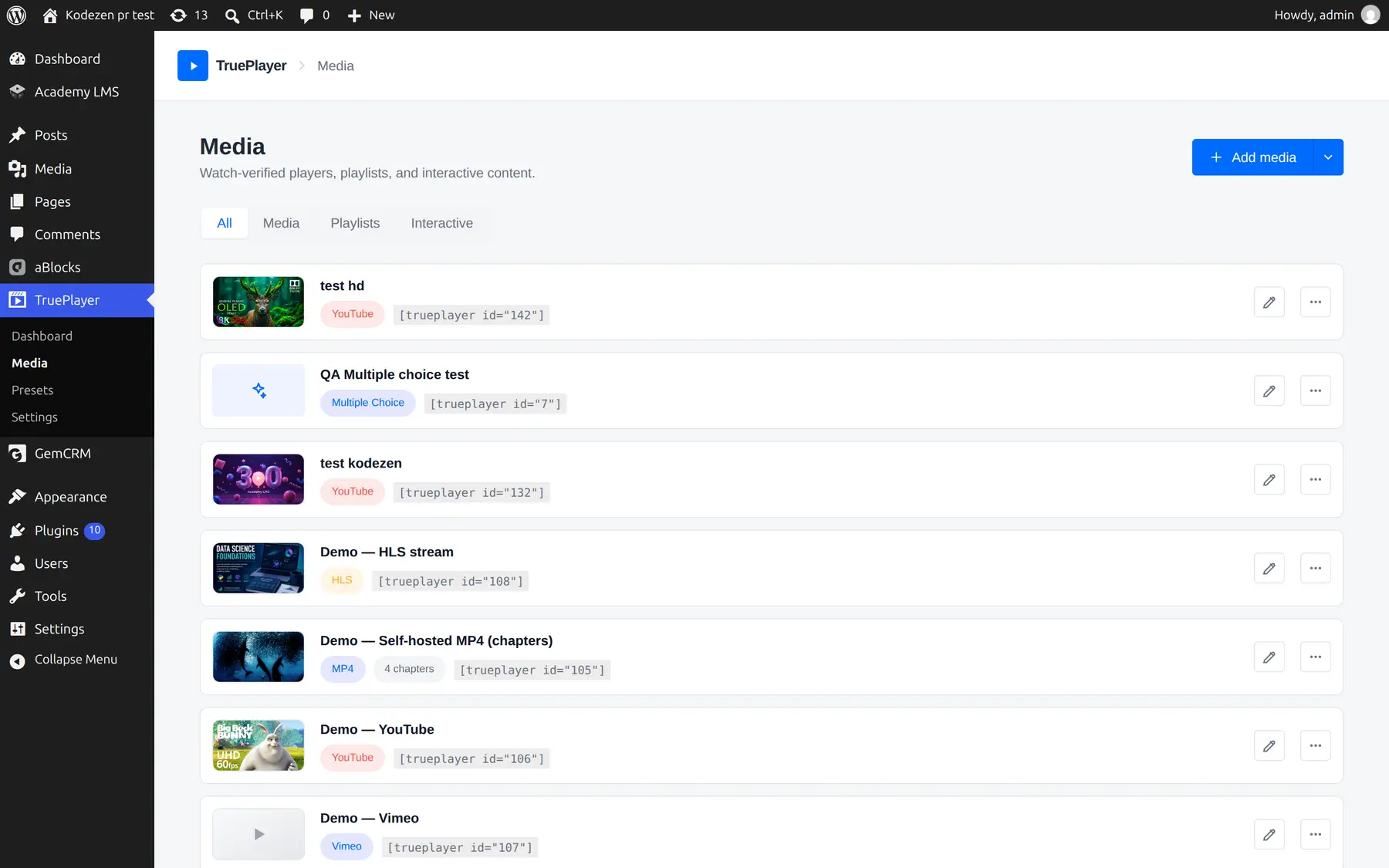
At the top: filter tabs — All, Media, Playlists, Interactive — plus search and a Create button.
Each row shows the item’s name, type, its shortcode, and when it was last modified.
The row menu gives you:
|
Action |
What it does |
|
Edit |
Opens the item in the editor |
|
Analytics |
Opens the reporting screen for that video |
|
Delete |
Removes the item (with a confirmation) |
Tags. You can tag items to keep a growing library organised — for example by course, client or topic — and then filter by tag.
The Video Editor
Open any media item, and you get the editor, with its own step menu down the left side.
|
Step |
What you set there |
|
Source |
Where the video comes from, the poster image, audio-only mode |
|
Player |
Appearance · Captions · Controls · Behaviour · Playback · Custom CSS |
|
Chapters & branding |
Timeline chapters, your logo, subtitle tracks |
|
Interactions |
Call to action · Layers · Timed content · Email capture |
|
Access & gating (Pro) |
Verification & quiz · Protection |
|
Embed |
Your shortcode, and the instant page switch |
Live preview. A working preview sits beside the editor and updates as you change settings, so you can see the result without saving and reloading a front-end page.
The title is the breadcrumb. The item’s name at the top of the screen is editable in place — click it and type.
Unsaved changes are protected. If you try to navigate away with unsaved work, TruePlayer asks first.
Analytics
Opens from a video’s row menu in the library, or from the editor.
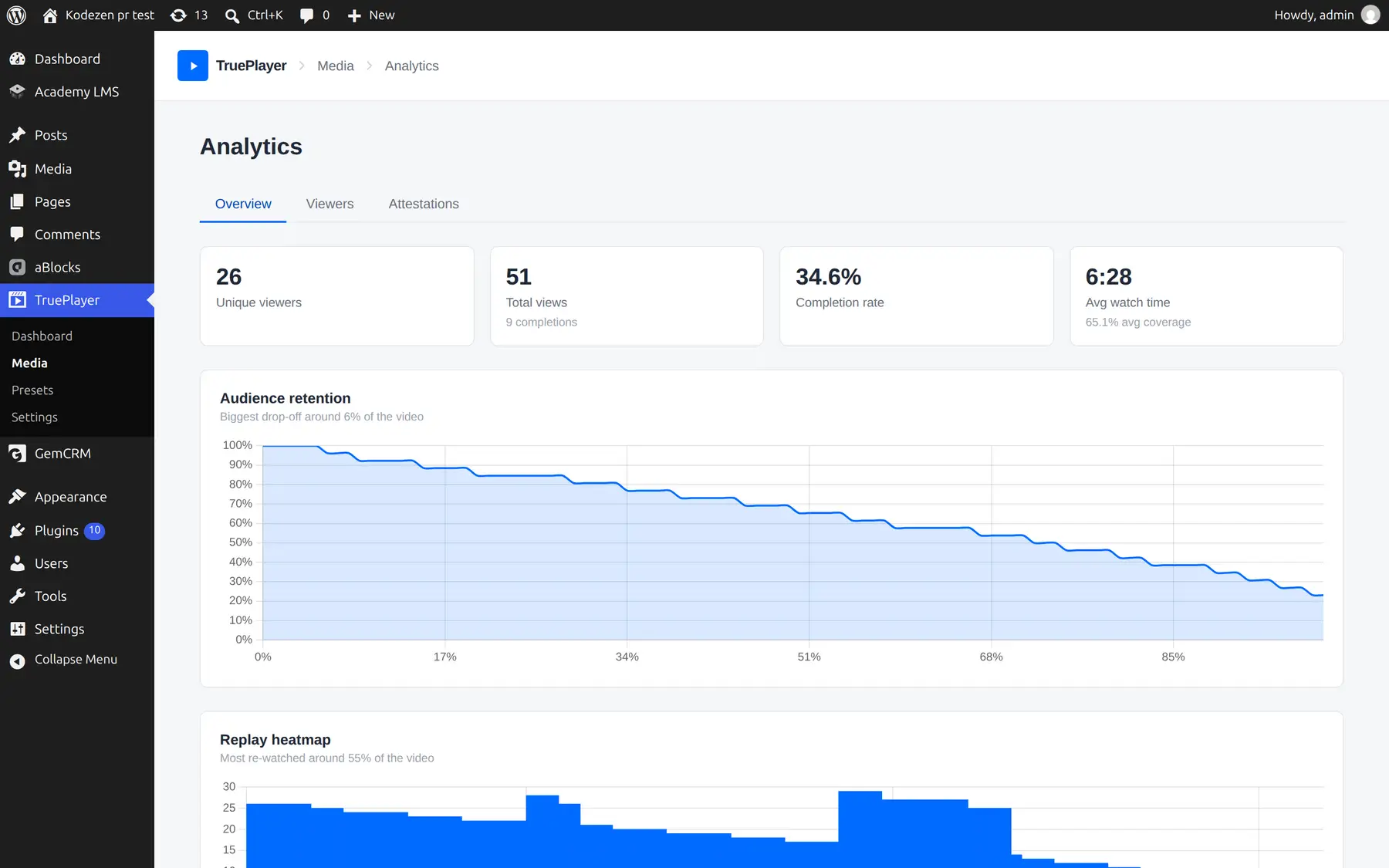
It shows the headline numbers (unique viewers, views, completion rate, average watch time), the charts (views over time, retention curve, replay heatmap, new vs returning, quiz performance), and a table of every individual viewer. Click any viewer for their own heatmap and quiz history.
Requires TruePlayer Pro.
Read more: Analytics
Presets
Saved bundles of appearance and behaviour settings that you can apply to any video.
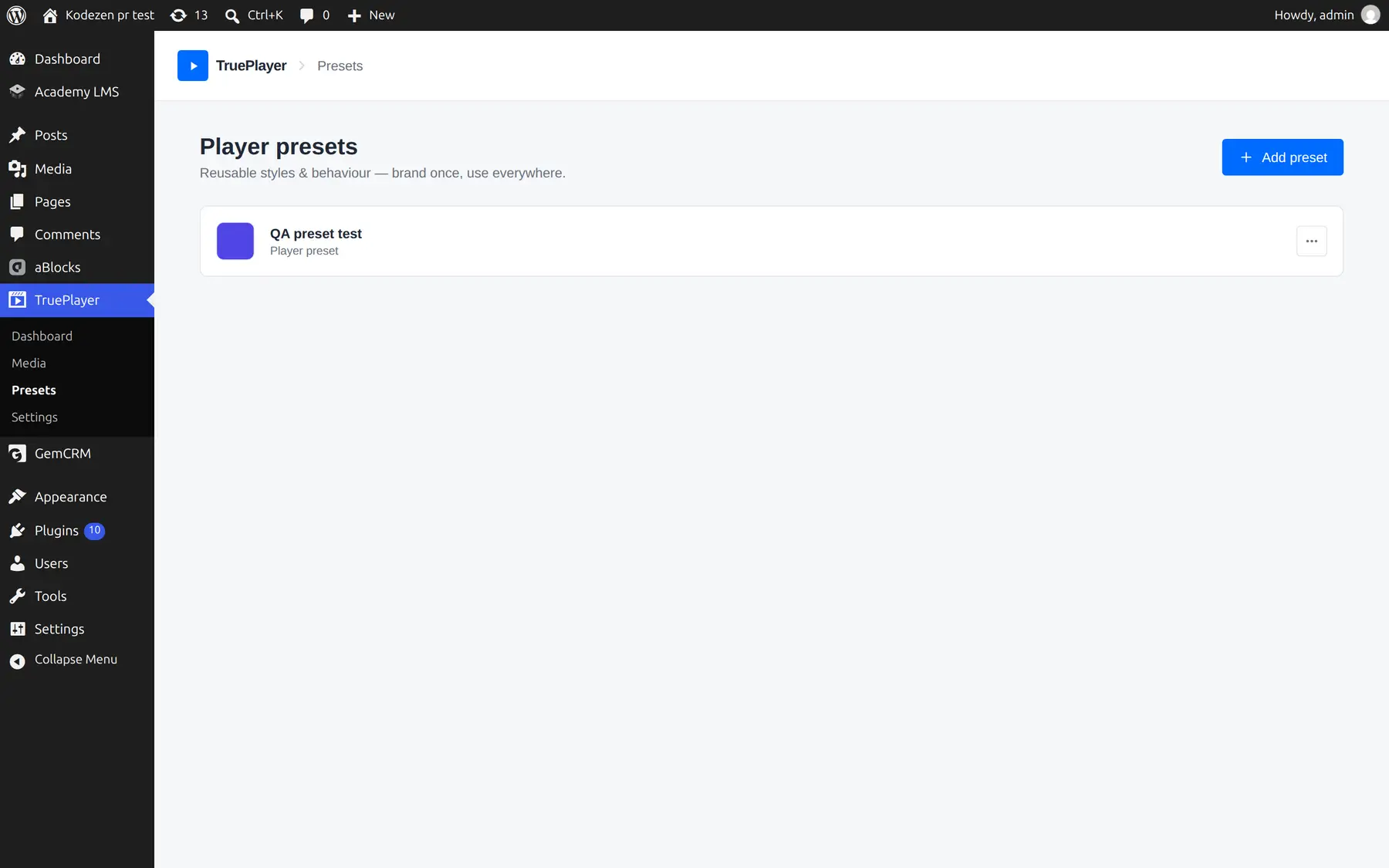
Each preset has a Preview with controls so you can see it applied to a real video before committing. Edit a preset and every video using it updates.
Read more: Player Presets
Settings
Site-wide configuration, organised into four groups:
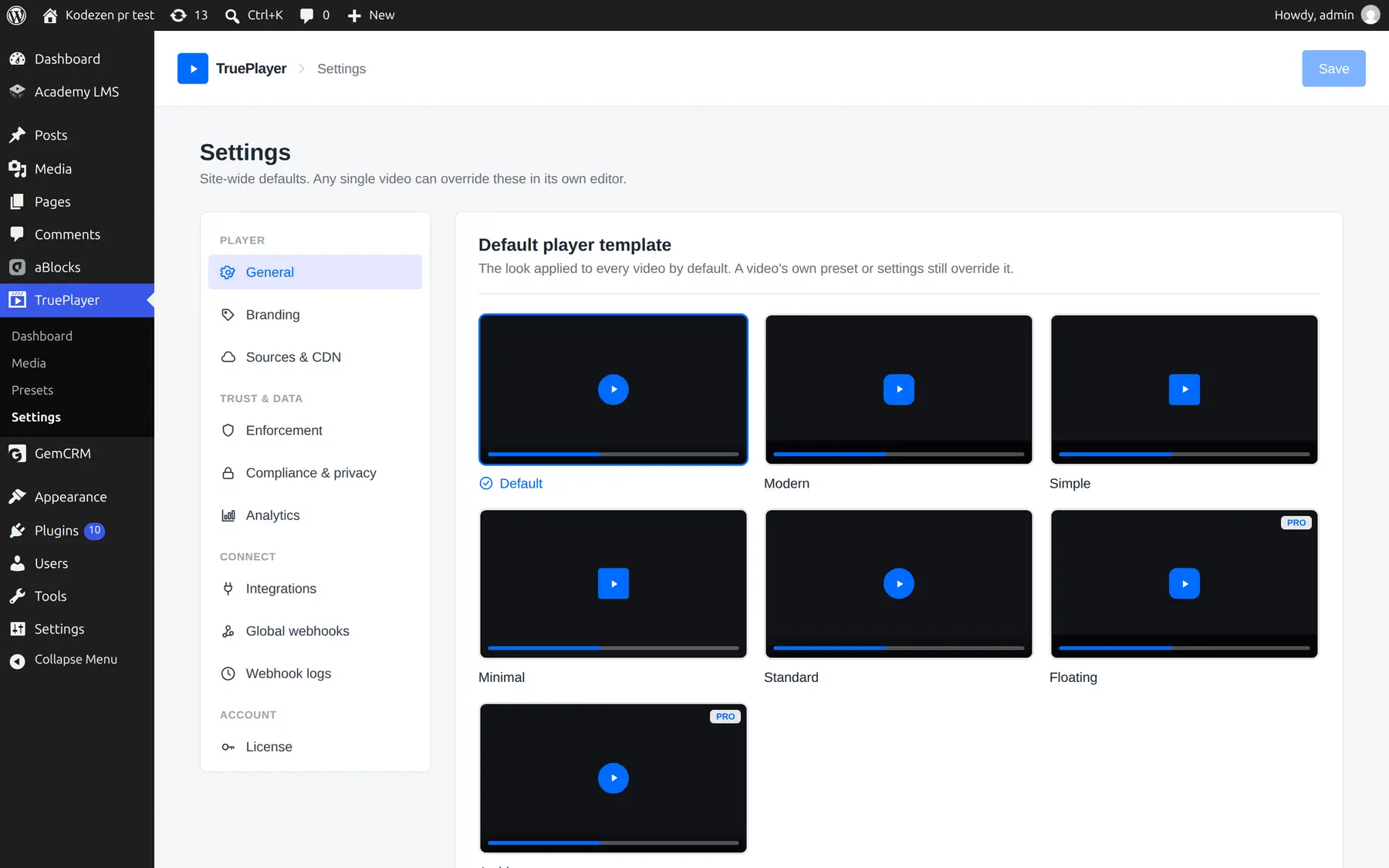
| Group | Sections |
| Player | General · Branding · Sources & CDN |
| Trust & data | Enforcement · Compliance & privacy · Analytics |
| Connect | Integrations · Global webhooks · Webhook logs |
| Account | License |
Read more: Settings Explained
Frequently Asked Questions
Who can see the TruePlayer menu?
Users who can manage plugin options — normally Administrators.
Why don’t the admin pages reload when I click around?
TruePlayer’s admin is a single application, so navigation is instant. Your browser’s Back button still works exactly as you’d expect.
Where did the Playlists and Interactive menu items go?
They are filters of the Media screen now. Old links still work — they redirect to the library with the right filter applied.
I made changes but nothing changed on my site.
Check that you clicked Save in the editor. The live preview updates before you save; your public pages update after.