


A Media item is one configured player — a single video or audio file, with its own appearance, behaviour, chapters, overlays and gating rules. It is the thing you will create most often.
Example media items:
- A course lesson video
- A product demo
- A podcast episode
- A YouTube video shown with your own branding
- A webinar replay behind a quiz
What a Media Item Is
A Media item is not the video file itself — it is the player wrapped around it. The file can live in your WordPress media library, on YouTube, on Vimeo, or on a professional video host. The Media item holds everything about how it is presented and enforced.
That separation is why you can swap the source later without rebuilding your settings, and why the same YouTube video can appear on two pages with completely different rules.
Create a New Media Item
Step 1: Open the Library
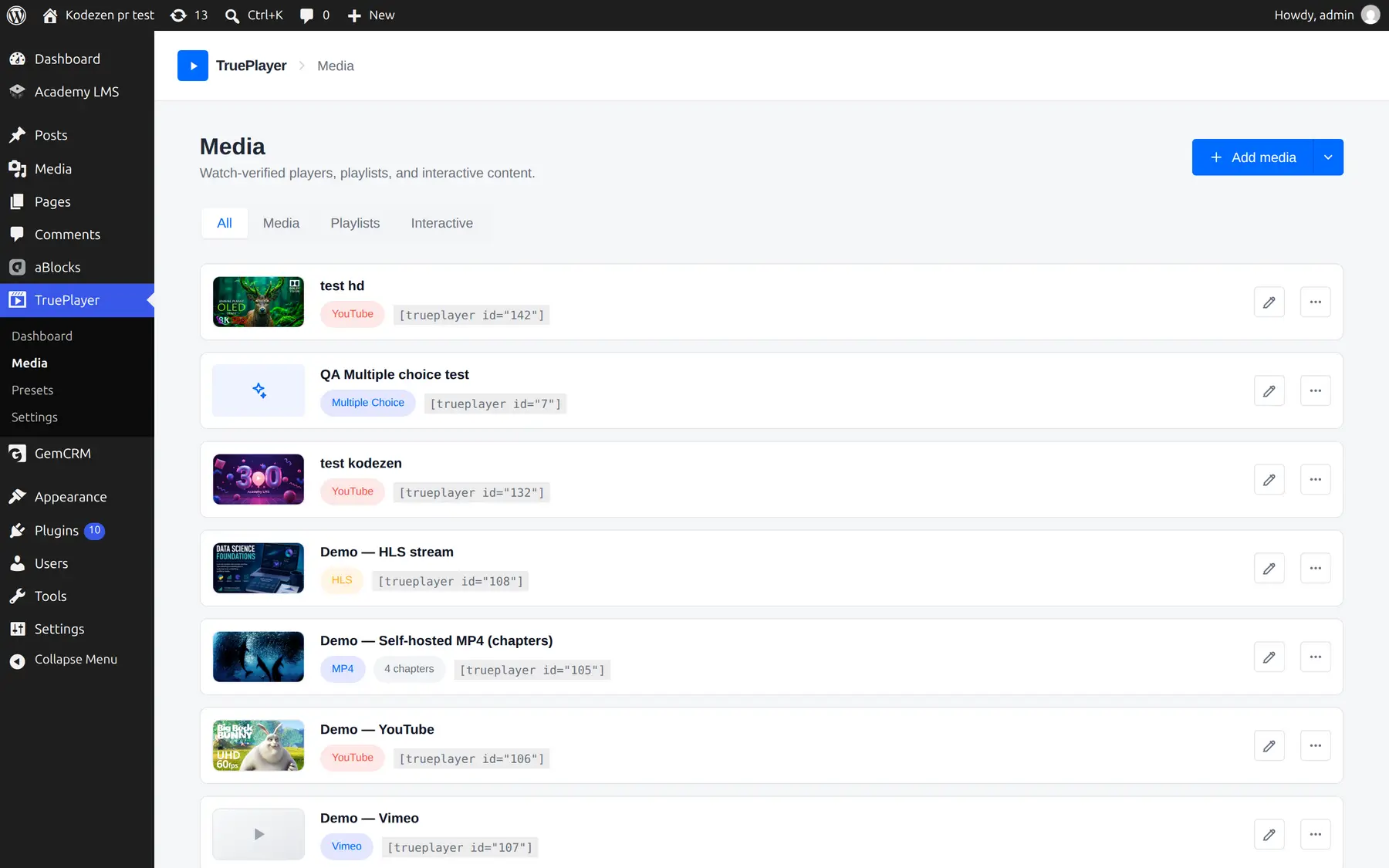
Go to: TruePlayer → Media
Step 2: Click Create
Click the Create button at the top right.
Step 3: Choose the Content Type
Select Media — described as “A video or audio player”.
Step 4: Name It
Enter a Name. This is shown in your library only — viewers never see it unless you choose to display it. You can rename it later at any time.
Step 5: Choose the Media Type
Pick Video or Audio.
Step 6: Create
Click Create. TruePlayer opens the new item in the editor, on the Source step.
Choosing Your Source
The Source step is where you tell TruePlayer where the media actually comes from.
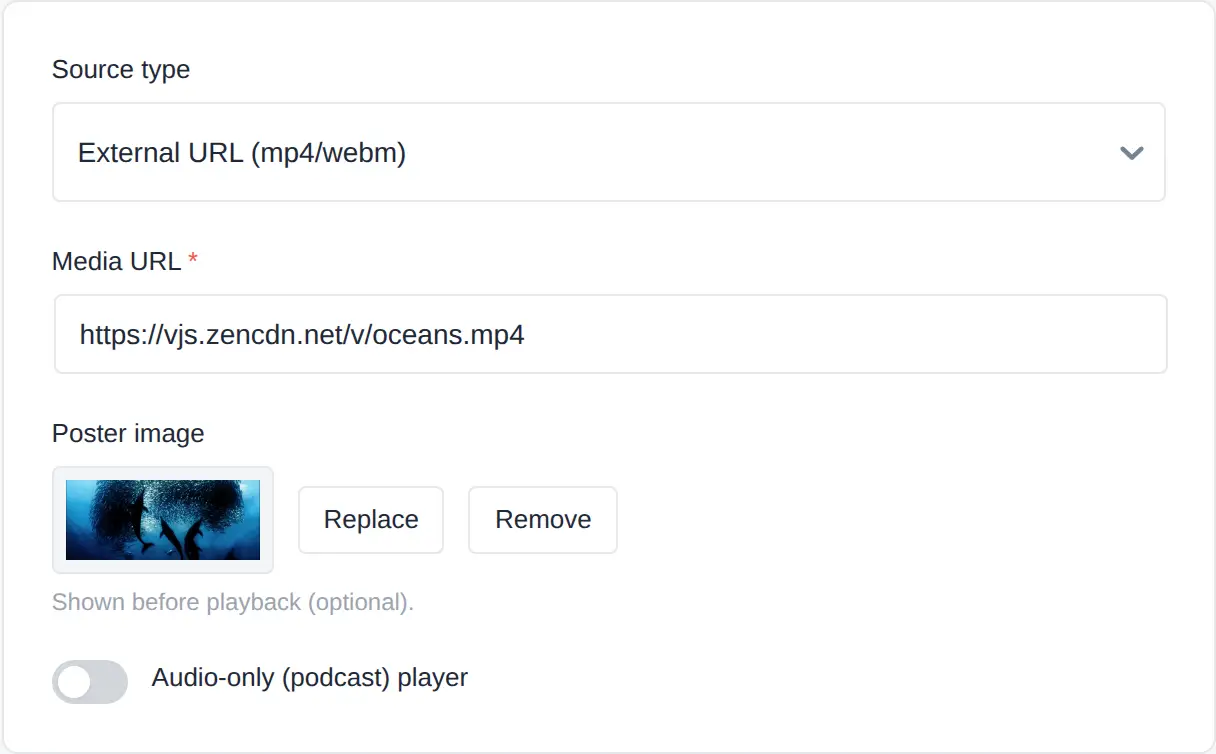
Step 1: Pick a Source Type
|
Source type |
What you provide |
Notes |
|
Upload / self-hosted |
Pick a file from your media library |
The simplest option |
|
Direct URL |
A .mp4 or .webm address |
Any publicly reachable file |
|
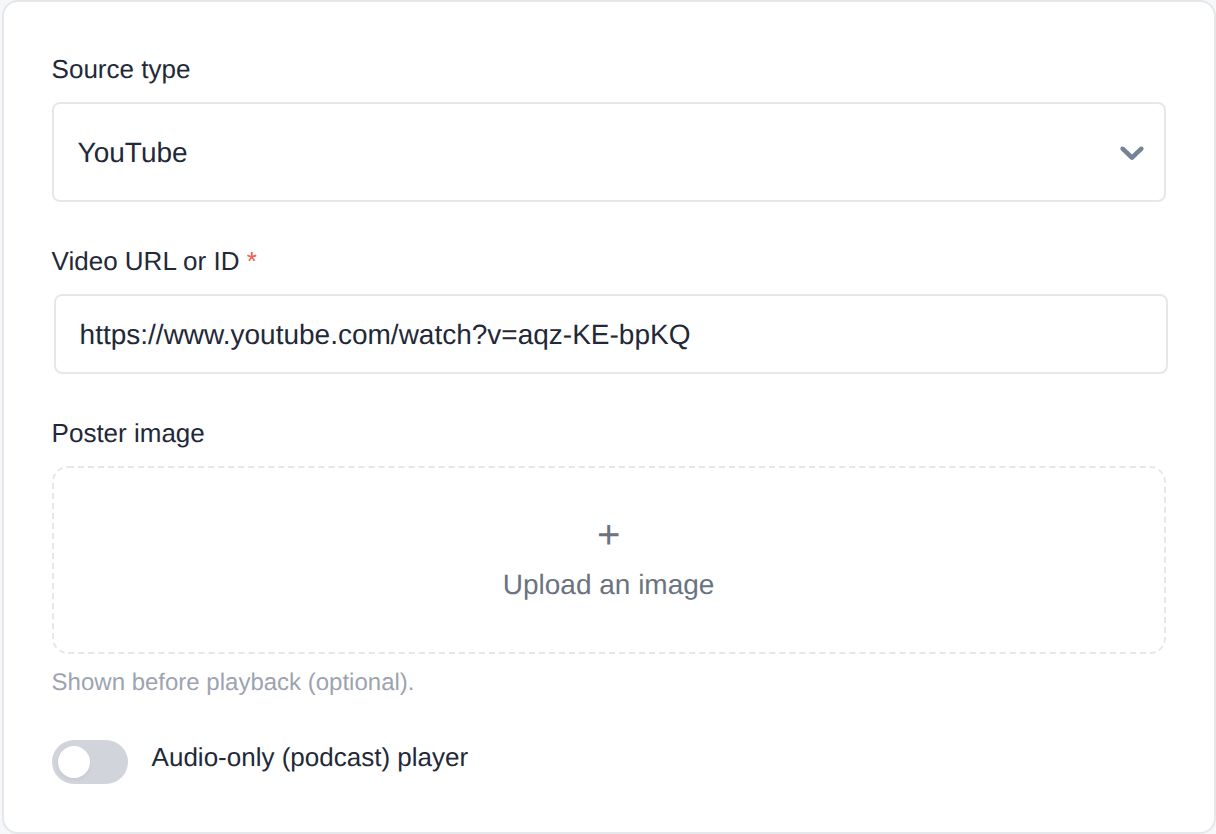
YouTube |
The normal watch link, or just the ID |
Plays through your player |
|
Vimeo |
The Vimeo link or ID |
Plays through your player |
|
HLS stream (Pro) |
An .m3u8 address |
Adaptive streaming |
|
Bunny.net (Pro) |
Pull-zone hostname + Video ID |
e.g. vz-abc123.b-cdn.net |
|
Bunny Storage (Pro) |
A direct file or playlist URL from your pull zone |
|
|
Mux (Pro) |
Your Mux playback ID, or a full signed playlist URL |
Step 2: Fill In the Details
The fields change to match the source type you chose. For example:
- YouTube / Vimeo — a single Video URL or ID field
- Upload — a Video file picker that opens your media library
- Bunny.net — Pull-zone hostname and Video ID
- Mux — Mux playback ID
Step 3: Save
Click Save. The live preview beside the editor will start showing your video.
YouTube and Vimeo, your way. When you use these sources, viewers get your skin, your accent colour, your logo and your tracking — not YouTube’s interface. The video streams from YouTube; everything around it is yours.
Poster Image
The poster image is the still picture shown before playback begins. It is also what TruePlayer displays in its fast-loading preview state, so it is the first thing most visitors see.
- Click Poster image → Upload an image and pick one from your media library.
- Leave it blank for a YouTube source and TruePlayer will use YouTube’s own thumbnail automatically.
A good poster makes a measurable difference to how many people press play.
Audio-Only Player
Turn on Audio-only (podcast) player on the Source step and the player becomes a slim horizontal bar with no picture area — right for podcasts, interviews, audiobooks and music.

Everything else still works: chapters, watch verification, quizzes, webhooks and analytics all behave exactly as they do for video.
What Viewers Can Do
Depending on which controls you enable, viewers can:
- Play, pause, rewind and fast-forward
- Drag the timeline (unless you have disabled seeking)
- Adjust volume or mute
- Turn captions on and off
- Change playback speed
- Enter picture-in-picture, so the video keeps playing in a corner while they browse
- Go fullscreen
- Jump to a chapter
- Download the file, if you allow it
- Resume exactly where they left off last time
Frequently Asked Questions
Can I change the source after creating the item?
Yes. Open the item, go to Source, and change it. All your other settings stay intact.
Can I use the same video in two places with different rules?
Yes — create two Media items pointing at the same file. Each has its own settings and its own shortcode.
Does TruePlayer host or convert my video?
No. It plays what you point it at. For large libraries, a dedicated video host like Bunny.net or Mux (Pro) will serve your files faster and more reliably than your own server.
Why does my self-hosted video buffer?
Ordinary web hosting is not optimised for streaming large files. Either compress the video or move it to a video host.
Can I show a video only to logged-in users?
Yes — turn on Require login to watch in Access & gating, or site-wide in Settings → Enforcement.
What file formats work?
MP4 (H.264) is the safest choice for video everywhere. WebM also works in most browsers. MP3 is the safest for audio.