


TruePlayer works immediately after activation with sensible defaults — you can create a video and embed it without touching a single setting. This article covers the handful of things that are worth setting once, so every video you create afterwards starts out correct.
There Is No Wizard — And That’s Deliberate
TruePlayer does not launch an onboarding wizard when you activate it. Instead of asking you a series of questions up front, it ships with working defaults and lets you change them when you actually need to.
Everything below is optional. If you just want to get a video on a page right now, skip straight to Create Your First Video.
Step 1: Set Your Brand Look
Go to:
TruePlayer → Settings → Branding
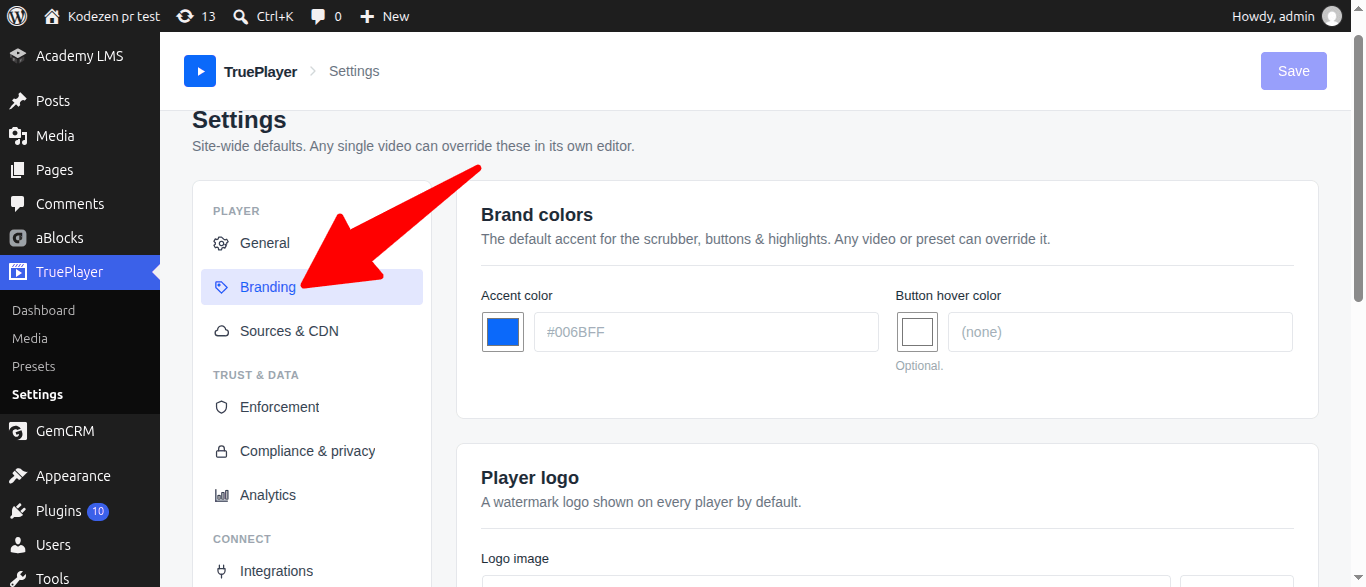
Set these once and every new video inherits them:
|
Setting |
What it does |
|
Accent color |
Colours the progress bar, buttons and highlights. Use your brand colour. |
|
Button hover color |
Optional. Leave blank for a light overlay. |
|
Logo image |
Shown in a corner of every video. |
|
Position |
Which corner the logo sits in. |
|
Opacity |
How subtle the logo is. |
|
Click-through link |
Optional — makes the logo clickable. |
Individual videos can still override any of this. Your per-video choice always wins.
Step 2: Save It as a Preset
A preset is a saved bundle of appearance and behaviour settings. Building one now saves you repeating yourself later.
- Go to TruePlayer → Presets and click Add preset.
- Name it something like “House style”.
- Set your skin, aspect ratio, control layout and behaviour switches.
- Save it.
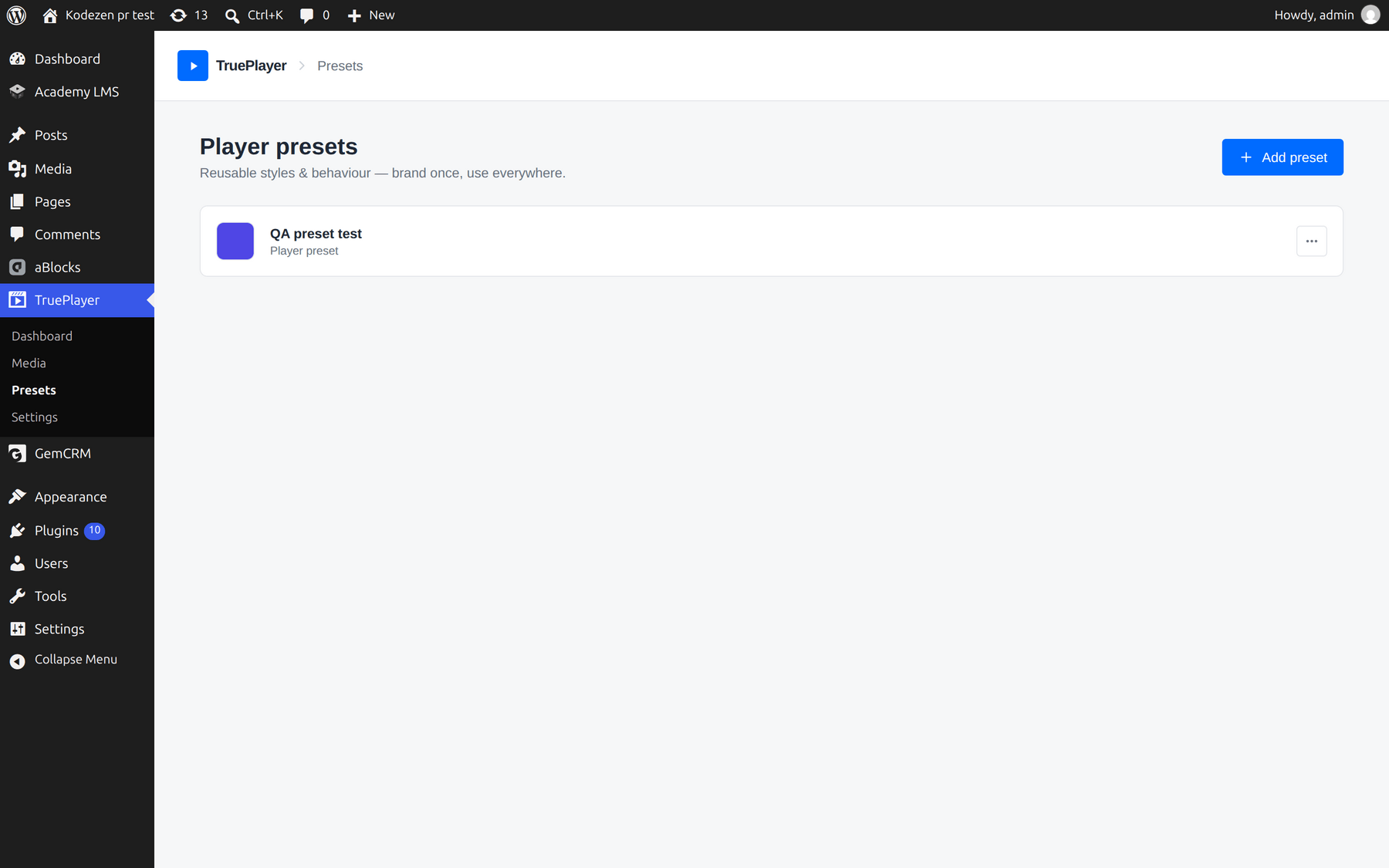
Then go to TruePlayer → Settings → General and choose it as your default preset. From that point on, every new video starts out looking the way you want.
See Player Presets for the full picture.
Step 3: Set Your Enforcement Defaults
Requires TruePlayer Pro.
Go to:
TruePlayer → Settings → Enforcement
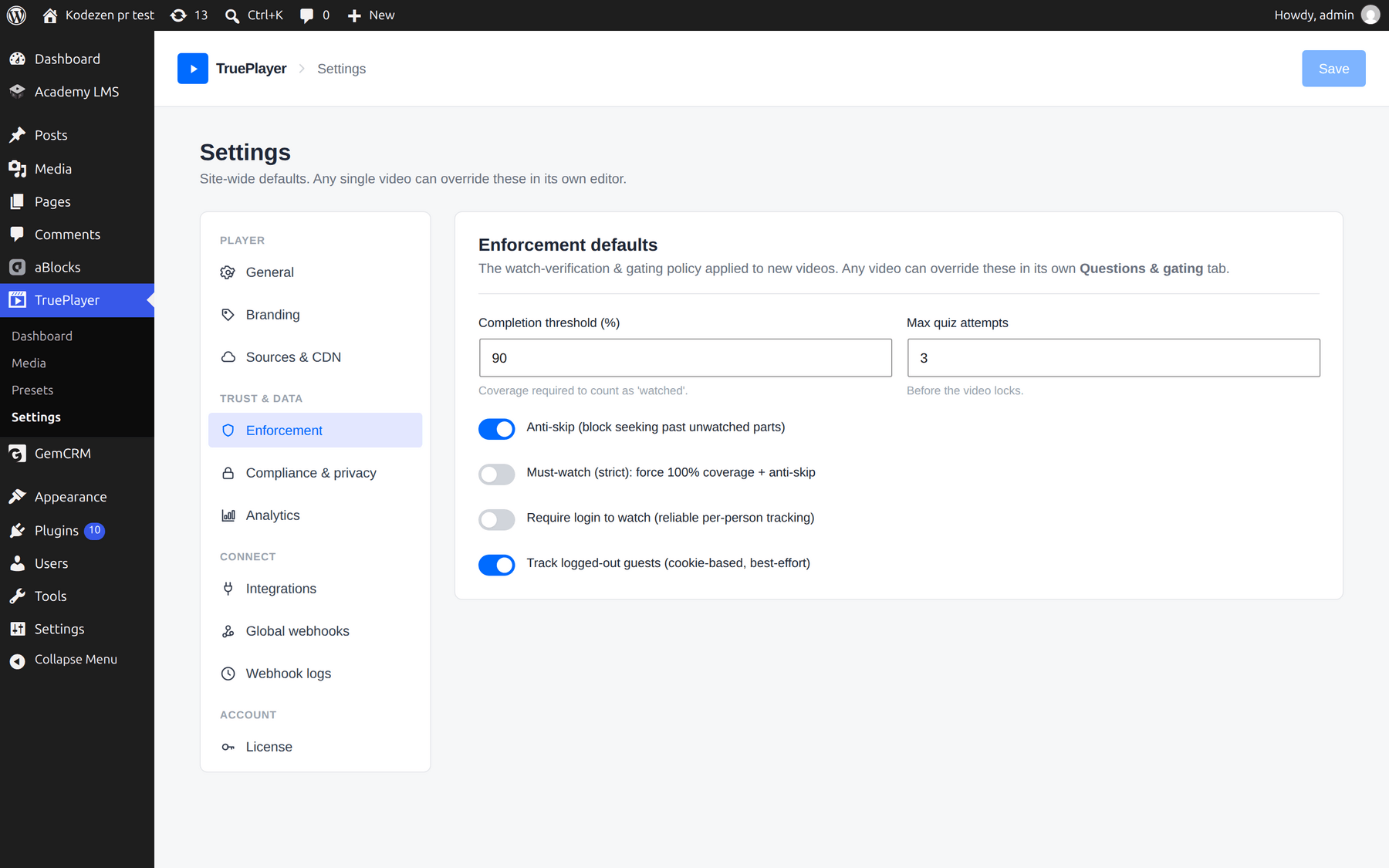
These are the site-wide rules for what counts as “watched”:
|
Setting |
What it does |
|
Completion threshold (%) |
How much of a video must genuinely be watched |
|
Max quiz attempts |
How many failures before the video locks |
|
Anti-skip |
Blocks seeking past parts they haven’t watched |
|
Must-watch (strict) |
Forces 100% coverage and anti-skip everywhere |
|
Require login to watch |
The only way to get reliable per-person records |
|
Track logged-out guests |
Cookie-based, best-effort tracking of anonymous visitors |
A rule of thumb:
- Running a course or marketing videos? Leave the defaults alone.
- Running compliance or safety training? Turn on Must-watch (strict) and Require login to watch.
Any individual video can override these in its own Access & gating step.
Step 4: Decide Your Privacy Position
Go to:
TruePlayer → Settings → Compliance & privacy
Two decisions to make:
- Auto-purge old records — turn this on and choose how many days to keep watch progress and quiz attempts. Anything older is deleted automatically each day. Off by default, so nothing is ever removed unless you ask for it.
- Track logged-out guests (in Enforcement) — turn this off if you would rather not store anything at all for anonymous visitors.
You can also switch off analytics collection entirely under Settings → Analytics. Gating still works; you simply stop storing the charts.
Step 5: Create Your First Video
Now you are ready. Go to:
TruePlayer → Media → Create
Follow Create Your First Video for the full walkthrough.
The Ten-Minute Checklist
- Set your accent colour and logo in Settings → Branding
- Create a preset and make it your default in Settings → General
- Review Settings → Enforcement (Pro)
- Decide on record retention in Settings → Compliance & privacy
- Connect Mailchimp or GemCRM in Settings → Integrations (Pro, optional)
- Add a global webhook and press Send test in Settings → Global webhooks (Pro, optional)
- Create your first video and embed it on a page
Frequently Asked Questions
What happens the first time I activate the plugin?
TruePlayer creates its database tables and adds the TruePlayer menu to your sidebar. No wizard appears and nothing on your site changes until you embed a player.
Do I have to set any of this up before I can use it?
No. Every setting here has a working default. This article is about saving yourself repetition later, not about unblocking anything.
If I change my branding later, do existing videos update?
Site-wide branding applies to any video that has not overridden it, so yes — existing videos pick up the change. The same is true of presets: edit the preset and every video using it updates.
Where do I put my license key?
In the Pro plugin’s own license panel under Plugins → Installed Plugins → TruePlayer Pro. The Settings → License screen inside TruePlayer shows you whether Pro is active, but the key itself is entered with the plugin.