


The Player step controls how your player looks and behaves. It is split into six small groups so you are never scrolling through one enormous form.
Where to Find It
Open any media item and click Player in the left step menu. Six sub-sections appear:
Appearance · Captions · Controls · Behaviour · Playback · Custom CSS
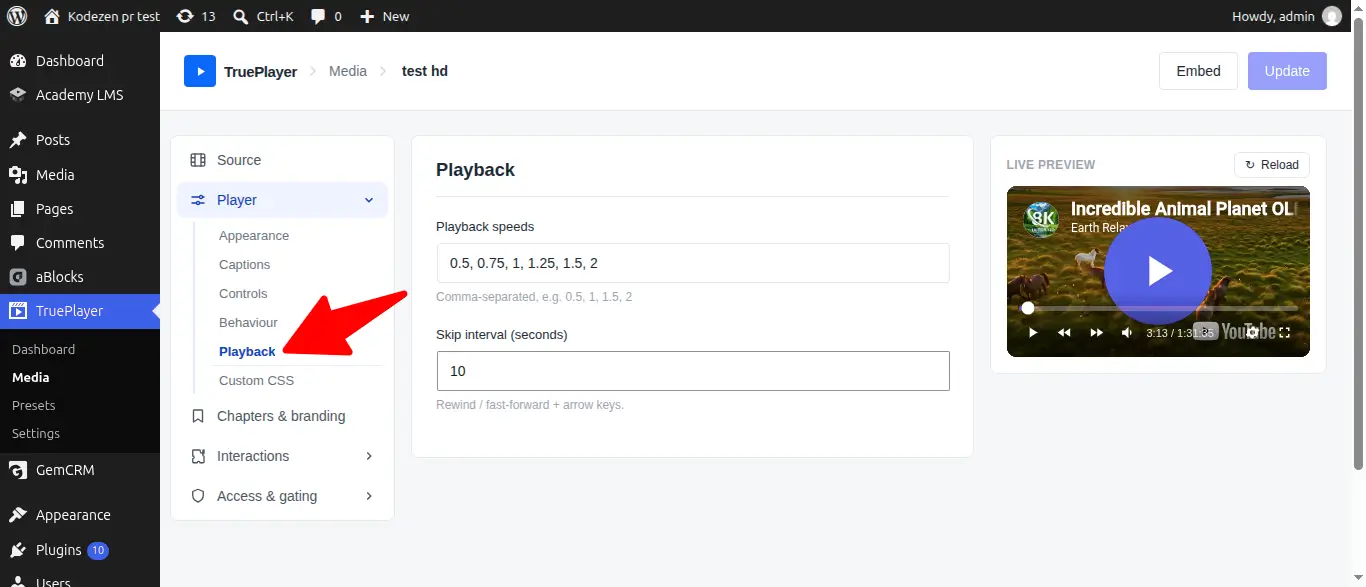
Everything you change is reflected immediately in the live preview beside the editor.
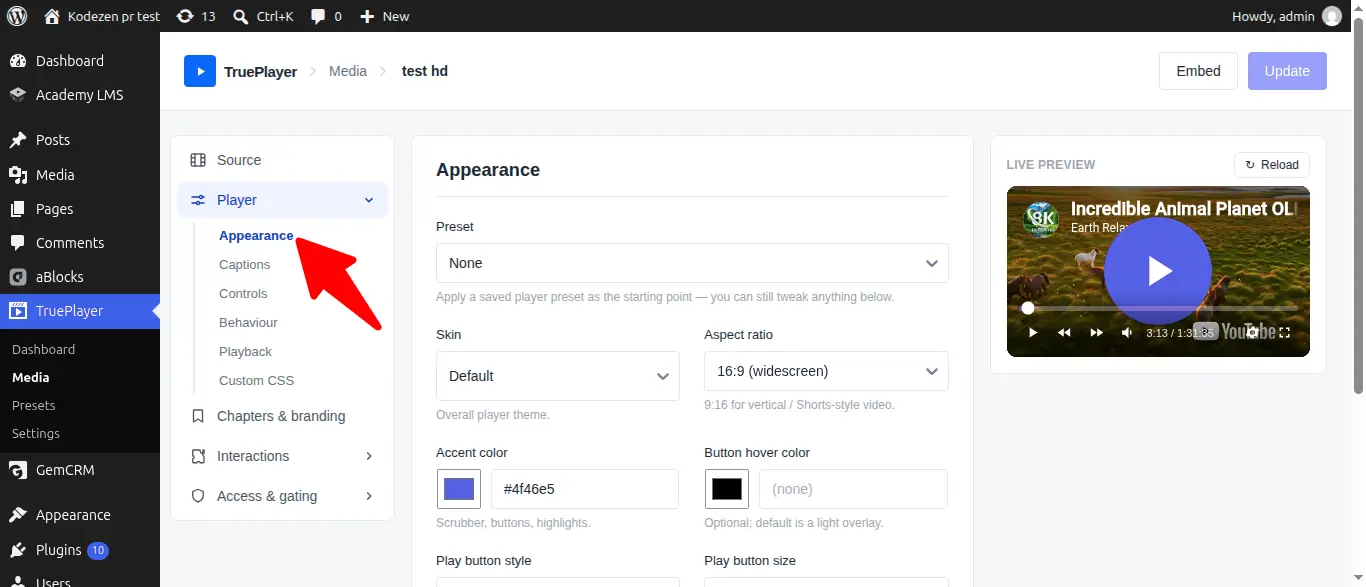
Appearance
|
Setting |
What it does |
|
Preset |
Apply a saved preset as your starting point — you can still tweak anything below |
|
Skin |
The overall theme: Default, Modern, Simple, Minimal, Standard (plus Floating and Ambient with Pro) |
|
Aspect ratio |
16:9, 9:16, 4:3, 1:1, 21:9 or auto. Use 9:16 for vertical, Shorts-style video |
|
Accent color |
Colours the scrubber, buttons and highlights |
|
Button hover color |
Optional; default is a light overlay |
|
Play button style |
Circle, square or soft |
|
Play button size |
The diameter of the centre play button. 0 uses the skin’s own size |
|
Control bar style |
Gradient, solid or minimal |
|
Corner roundness |
How rounded the player’s corners are, in pixels |
|
Show large center play button |
The big play button over the poster |
Captions
Controls how subtitles are drawn. Useful when your footage makes the default white-on-black hard to read.
|
Setting |
What it does |
|
Font size |
As a percentage of the player’s normal caption size |
|
Text color |
Caption text colour |
|
Background color |
The box behind the text |
|
Background opacity |
How solid that box is |
Add the caption tracks themselves in the Chapters & branding step.
Controls
Turn individual buttons on or off:
Play · Rewind · Forward · Progress bar · Current time · Duration · Mute · Volume · Captions · Settings gear · Picture-in-picture · Fullscreen · Download
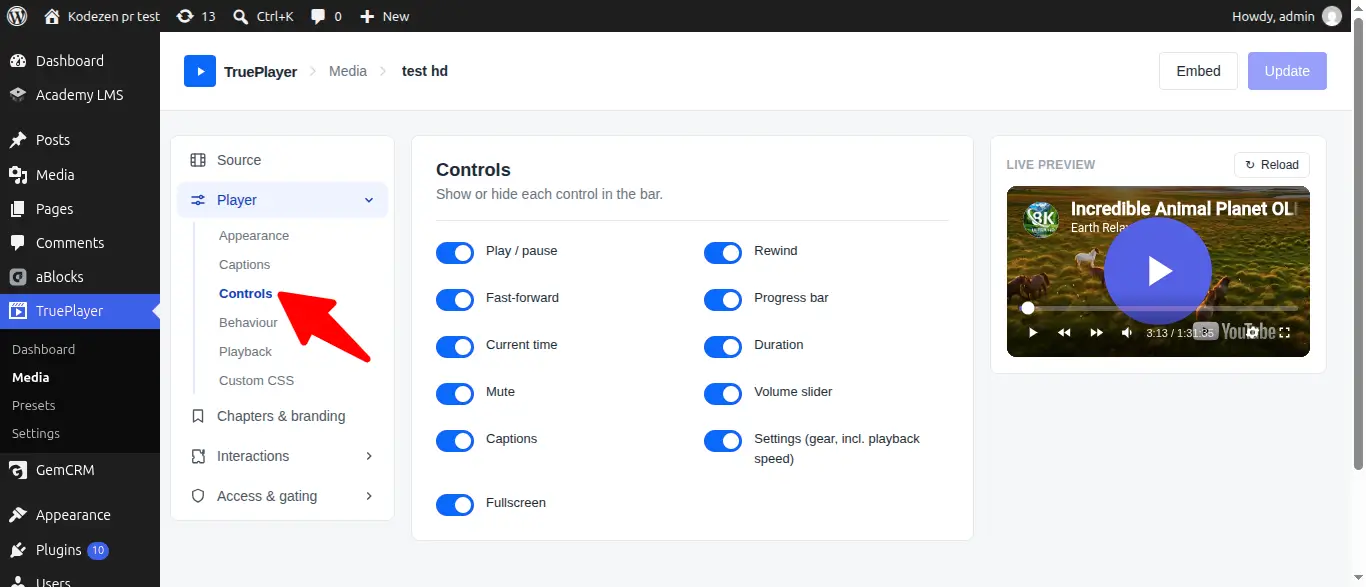
A few worth thinking about:
- Download is off by default. Turn it on only if you are happy for people to keep a copy.
- Progress bar — hiding it is a blunt way to stop skipping; the Behaviour options below are usually better.
- Settings gear gives viewers speed, quality and caption choices in one menu.
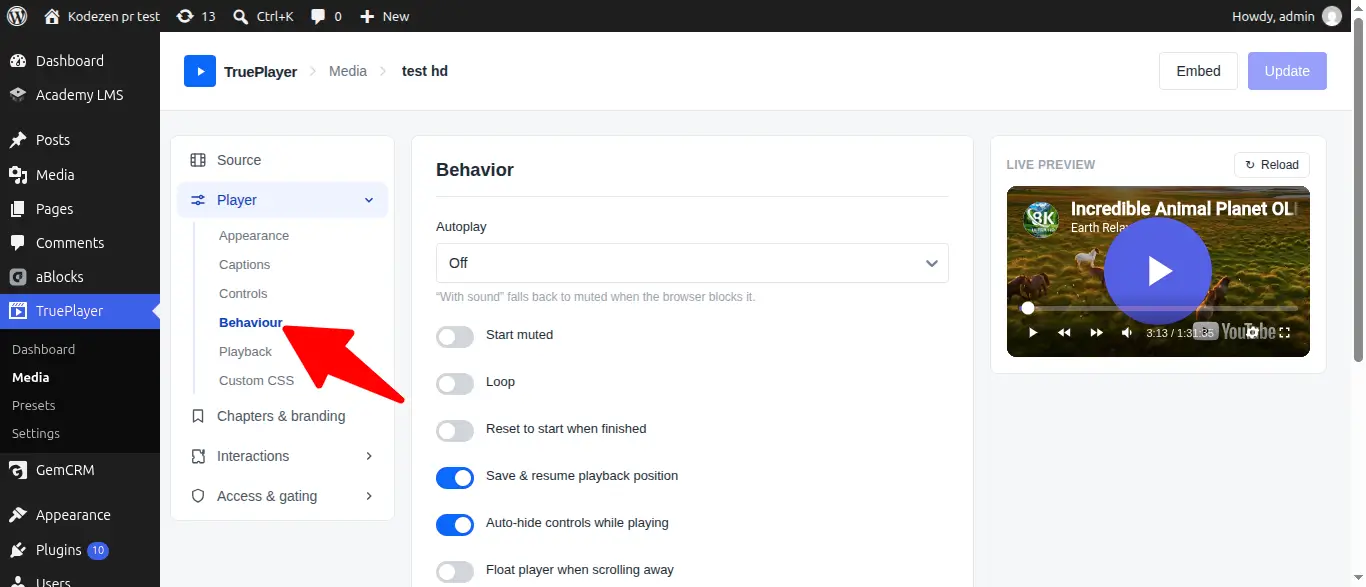
Behaviour
The most interesting group.
|
Setting |
What it does |
|
Autoplay |
Off, muted, or with sound. “With sound” falls back to muted when the browser blocks it |
|
Start muted |
Begin with no sound |
|
Loop |
Restart automatically at the end |
|
Reset to start when finished |
Return to 0:00 instead of holding on the last frame |
|
Save & resume playback position |
Viewers pick up exactly where they left off |
|
Auto-hide controls while playing |
Controls fade away when the mouse is idle |
|
Float player when scrolling away |
The video shrinks into a corner and keeps playing |
|
Float position |
Which corner it floats to |
|
Prevent skipping ahead |
They can rewind, but cannot jump to unwatched parts |
|
Disable the timeline entirely |
No clicking or dragging at all, in either direction |
|
Muted preview on hover |
The thumbnail plays a silent preview when the mouse rests on it (self-hosted video) |
|
Preload |
How much to load before play: auto, metadata or none |
|
Load strategy |
When the player boots — see below |
Load strategy
This is the setting that keeps pages with video fast.
|
Option |
What happens |
|
Facade (default) |
Only a still image with a play button is shown. Nothing heavy loads until someone clicks |
|
Eager |
The full player loads with the page |
|
On visible |
Stays as a still image until the viewer scrolls to it, then loads |
Leave it on Facade unless you have a specific reason not to. Autoplay automatically switches to Eager, since there is nothing to wait for.
Playback
|
Setting |
What it does |
|
Playback speeds |
Which speeds to offer, comma-separated — e.g. 0.5, 1, 1.5, 2 |
|
Skip interval (seconds) |
How far the rewind / fast-forward buttons and arrow keys jump. Default 10 |
Custom CSS
For anyone who wants pixel-level control. CSS entered here applies to this video only and is scoped so it cannot affect the rest of your site.
There is also a site-wide custom CSS field under Settings → Player defaults for styling every player at once.
If you are not comfortable with CSS, you can safely ignore this section — everything above covers the normal range of customization.
Frequently Asked Questions
Why won’t my video autoplay with sound?
Browsers block it. That is a browser rule, not a TruePlayer limitation. Autoplay with sound falls back to muted automatically so the video still plays.
Can I apply these settings to every video at once?
Yes — build a preset and set it as your default in Settings → General.
What is the difference between “Prevent skipping ahead” and “Disable the timeline”?
“Prevent skipping ahead” still lets viewers rewind and rewatch — they just cannot jump forward past what they have seen. “Disable the timeline” removes all seeking in both directions.
Does the floating player work on mobile?
Yes, though the effect is more noticeable on desktop where there is more to scroll past.
My skin choice reverted to Default?
Floating and Ambient require TruePlayer Pro. Without an active license they fall back to Default.