


The Chapters & branding step covers the things that sit on your video: timeline markers, your logo, and caption tracks.
Open any media item and click Chapters & branding in the left step menu.
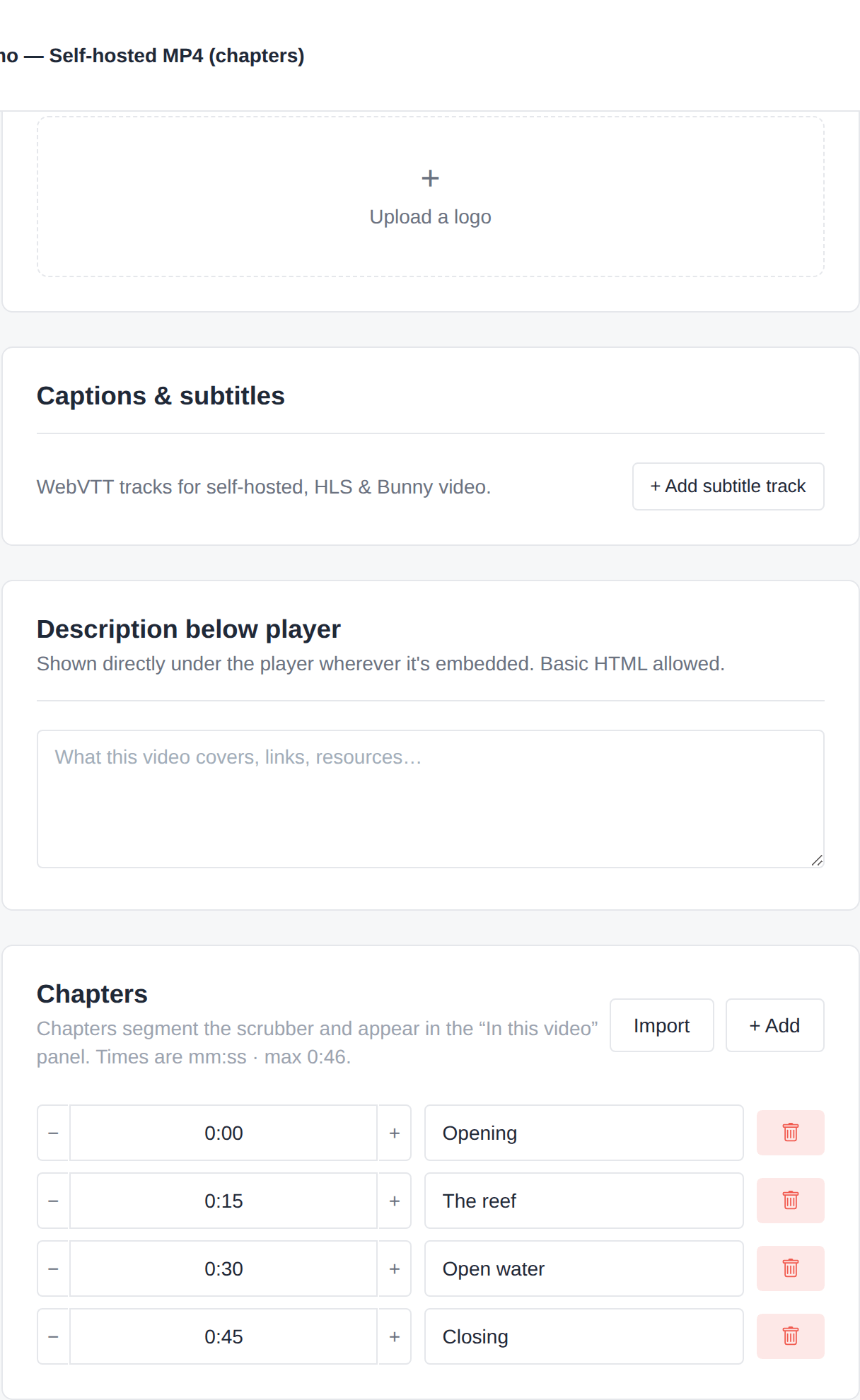
Chapters
Chapters are named markers along the timeline that let viewers jump straight to a section — the same idea as chapters on YouTube.
Good chapter names describe content, not structure:
- “Setting up your account” ✅
- “Part 2” ❌
Add a Chapter
- Click Add chapter.
- Enter the time the chapter starts.
- Enter the label viewers will see.
- Repeat for each section.
- Click Save.
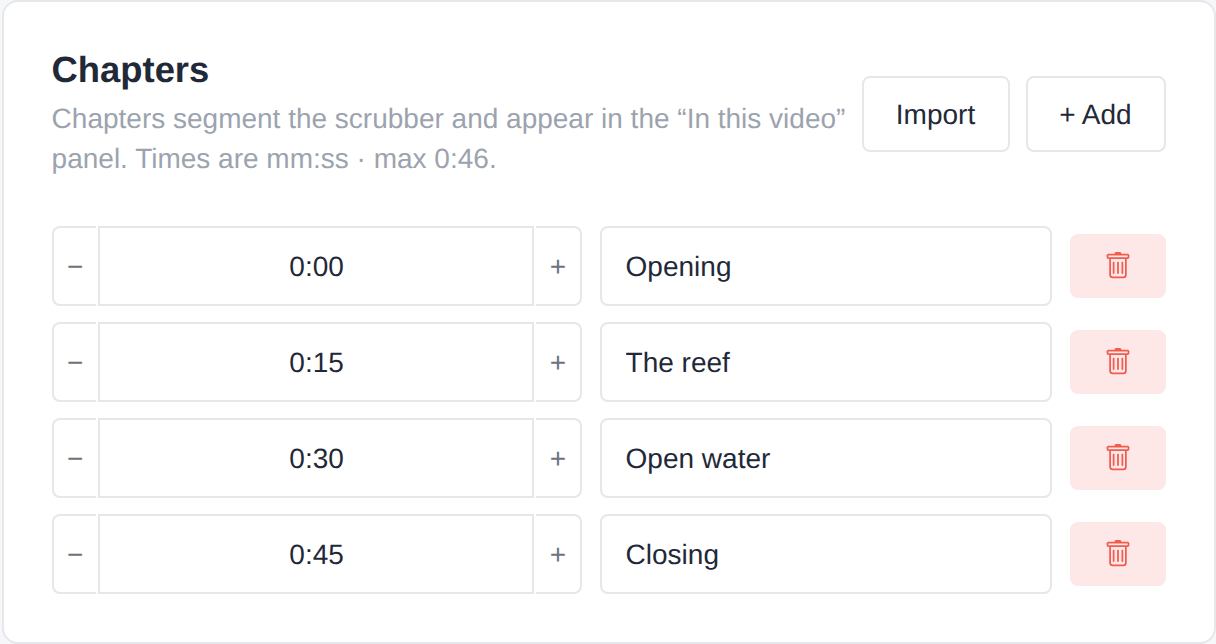
Getting the timing exact. Each chapter time has −1s and +1s nudge buttons beside it. Play the preview, note where the section actually starts, then nudge until it lands cleanly.
Chapters improve completion rates on longer videos, because a viewer who can see the structure is more likely to commit to watching.
Your Logo on the Video
A persistent watermark logo in a corner of the picture.
|
Setting |
What it does |
|
Logo image |
Pick from your media library. A transparent PNG works best |
|
Position |
Which corner it sits in |
|
Opacity |
How subtle it is. Around 70% usually looks right |
|
Click-through link |
Optional — makes the logo clickable |
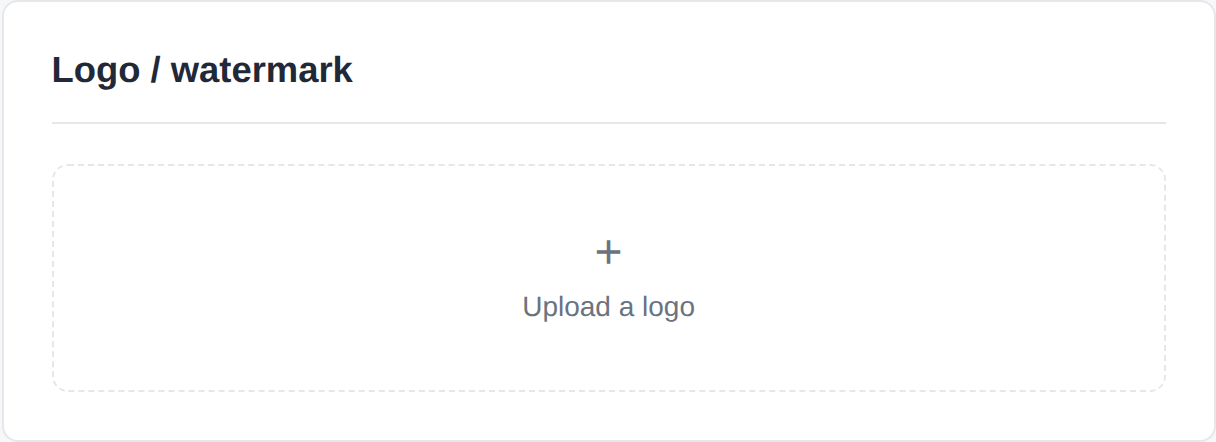
Set it once instead. If you want the same logo on every video, set it in Settings → Branding and leave this blank. This step is for the exceptions.
Note that this is a branding logo. If you want a viewer’s identity burned into the picture to discourage screen recording, that is the dynamic watermark — see Protection & Private Video.
Subtitles
Add caption tracks so your video is accessible and watchable with the sound off — which is how a large share of people watch on mobile.
Add a Subtitle Track
- Click Add track.
- Choose the caption file (a .vtt file) from your media library.
- Enter a Label — what viewers see in the menu, e.g. English.
- Enter a Lang code, e.g. en.
- Repeat for each language.
- Click Save.
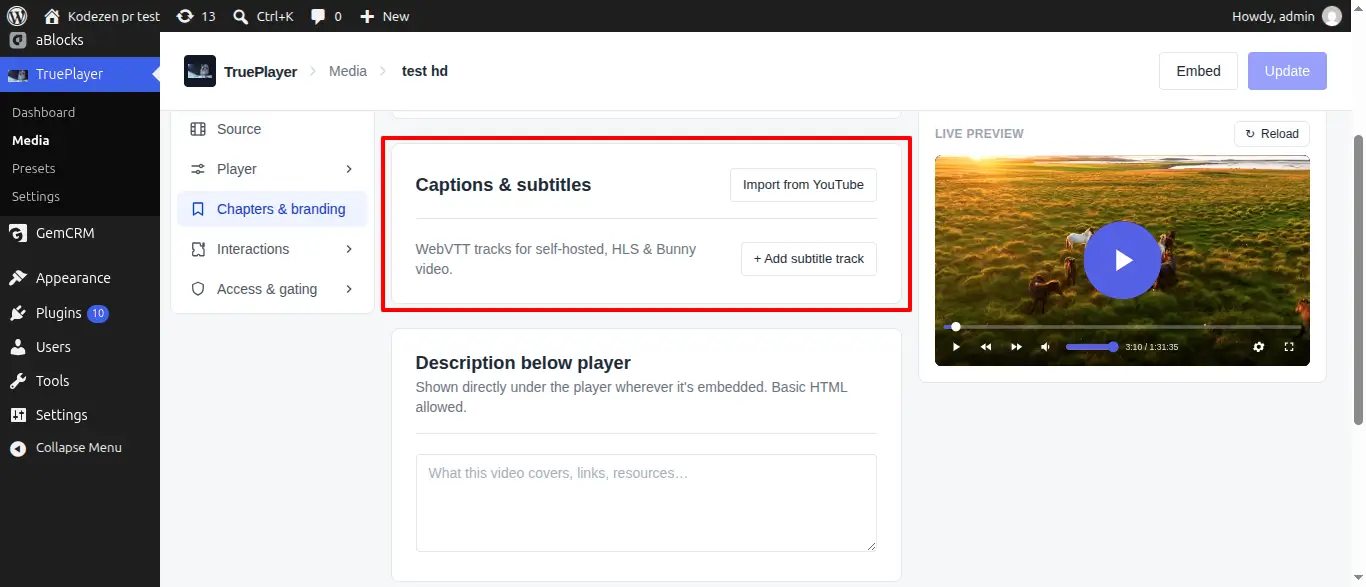
Viewers switch tracks from the captions button in the control bar. How captions look — size, colour, background — is set in the Player → Captions section.
Importing from YouTube (Pro). If your source is a YouTube video whose owner published captions, TruePlayer can fetch them, convert them to WebVTT and add them to your media library automatically. Auto-generated YouTube captions are often unavailable through this route — that is a YouTube restriction, not a TruePlayer one.
Video Description
An optional block of text rendered underneath the player. It supports formatting and links, so it is a good place for lesson notes, resources, or a transcript.
Frequently Asked Questions
How many chapters can I add?
There is no practical limit, but more than about a dozen becomes hard for viewers to scan.
Do chapters work with YouTube and Vimeo sources?
Yes. Chapters are part of your player, so they work with every source type.
What is a .vtt file?
WebVTT, the standard subtitle format for the web. Most captioning tools export it. It is a plain text file listing timings and the text to show.
Can I make the logo appear only for part of the video?
Not with the branding logo — it is always visible. For timed overlays, use Call to Action & Layers.
Will my logo cover the controls?
Position it in a top corner if the bottom is getting crowded.