


Alongside the video player, TruePlayer can host interactive content — quizzes, flashcards, drag-and-drop exercises and similar activities.
What Interactive Content Is
Interactive items are built with a second engine that sits inside the same plugin. Instead of choosing a video source, you choose a content type and author the activity directly in the admin.
Typical content types include:
- Multiple choice questions
- True/false quizzes
- Flashcards
- Fill in the blanks
- Drag and drop
- Summary and sequencing exercises
They appear in the same library, use the same admin, and feed the same analytics and automations as your videos.
How is this different from the quizzes in Access & gating? Those attach questions to a video and enforce watching. Interactive items are standalone activities that are not attached to a video at all. Use gating to enforce; use interactive content to teach and practise.
Checking Whether It’s Available
Interactive content requires the interactive engine to be present on your installation.
- Go to TruePlayer → Media and click Create.
- If you see Interactive — “A quiz, flashcards, and more” — it is available.
- If you only see Media and Playlist, your installation does not include it.
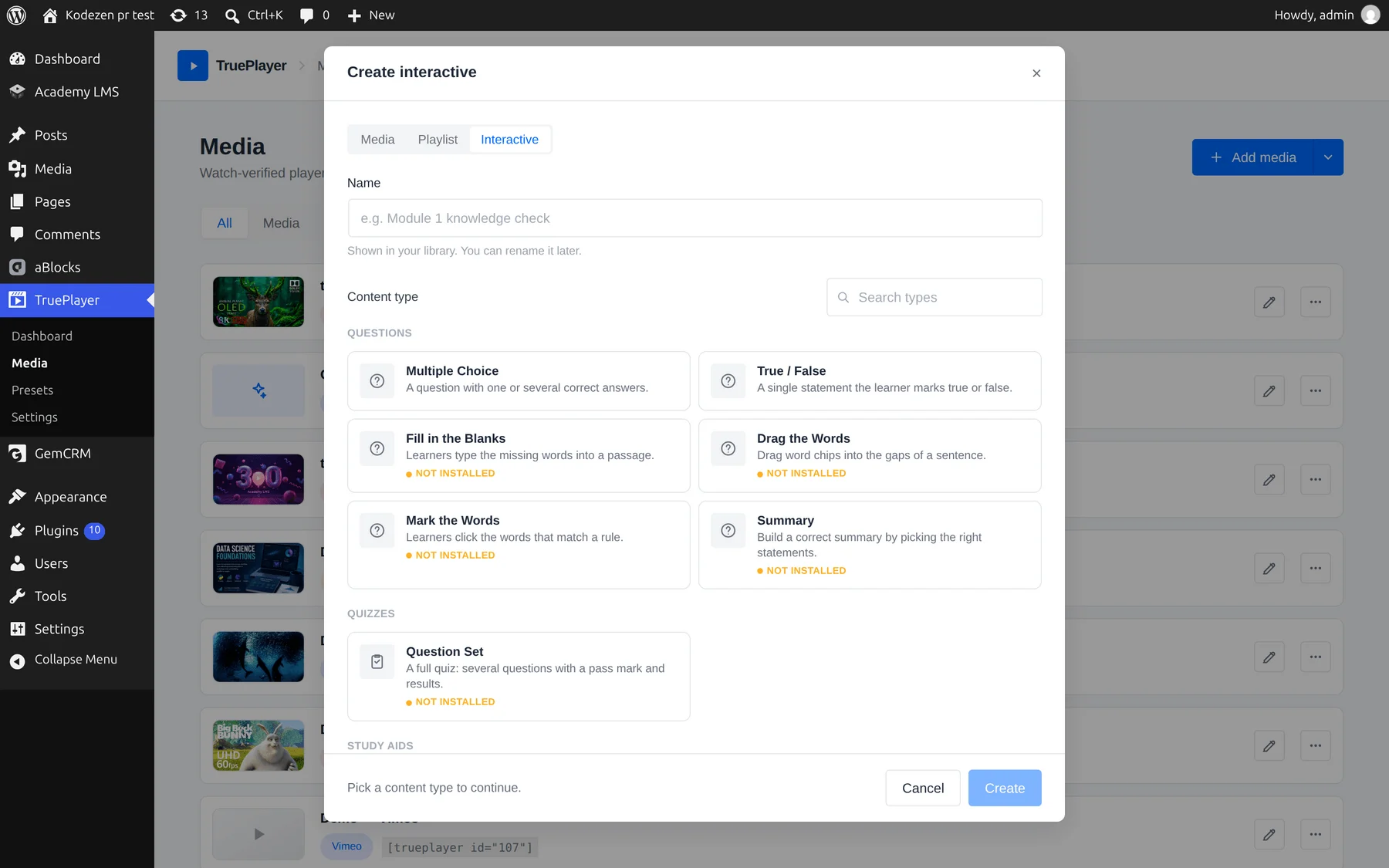
The library also gains an Interactive filter tab when the engine is present.
Create an Interactive Item
Step 1: Open the Library
Go to TruePlayer → Media.
Step 2: Create
Click Create and choose Interactive.
Step 3: Name It
Enter a name and click Create.
Step 4: Choose a Content Type
Pick the kind of activity you want to build. If a content type has not been installed yet, TruePlayer offers to fetch it for you.
Step 5: Author the Content
Fill in the authoring form — the fields change to match the content type you chose. A quiz asks for questions and answers; flashcards ask for card fronts and backs.
Step 6: Preview
Use the preview to try the activity exactly as a learner will see it.
Step 7: Save and Embed
Save, then copy the shortcode and paste it into any page or post — the same as any other TruePlayer item:
Save and Resume
Interactive items save a learner’s progress automatically as they work through them. Someone who leaves halfway through a quiz comes back to where they were, rather than starting over.
Progress is saved for signed-in users only. There is no reliable way to identify a logged-out visitor across visits, so nothing is saved for them. If save-and-resume matters for your content, require login.
How It Fits With Everything Else
Interactive content shares TruePlayer’s foundations:
- The same library — one place for videos, playlists and interactive items
- The same analytics — activity feeds the same reporting
- The same automations — completions and results flow through the same event system, so your webhooks and CRM integrations see them
- The same embedding — the same shortcode format
What it does not share is the video player. Interactive items are rendered by their own engine, so video features like chapters, skins and watch verification do not apply to them.
Frequently Asked Questions
Do I need Pro for interactive content?
The engine is part of the plugin when included in your installation. Analytics and automation around it are Pro features, as they are everywhere else.
Can I put an interactive item inside a video?
They are separate items. To add questions to a video, use Quiz Gating & Locking.
Can I put interactive items in a playlist?
Playlists are built from media items.
Do learners need an account?
Not to use an activity, but progress is only saved for signed-in users.
Where do I see the results?
In the same Analytics area as your videos.
Can I import existing interactive content?
Yes — content packages can be imported through the library.