


Once you have built a player, there are four ways to put it in front of visitors.
Four Ways to Embed
|
Method |
Best for |
|
Shortcode |
Anywhere — pages, posts, widgets, page builders |
|
Block |
The WordPress block editor, with a visual picker |
|
Popup |
A button or link that opens the video in a lightbox |
|
Instant page (Pro) |
Giving a video its own shareable web page |
Method 1: The Shortcode
The most flexible option, and the one that works everywhere.
Step 1: Copy the Shortcode
Open your media item and click the Embed step. Your shortcode is shown there, ready to copy:
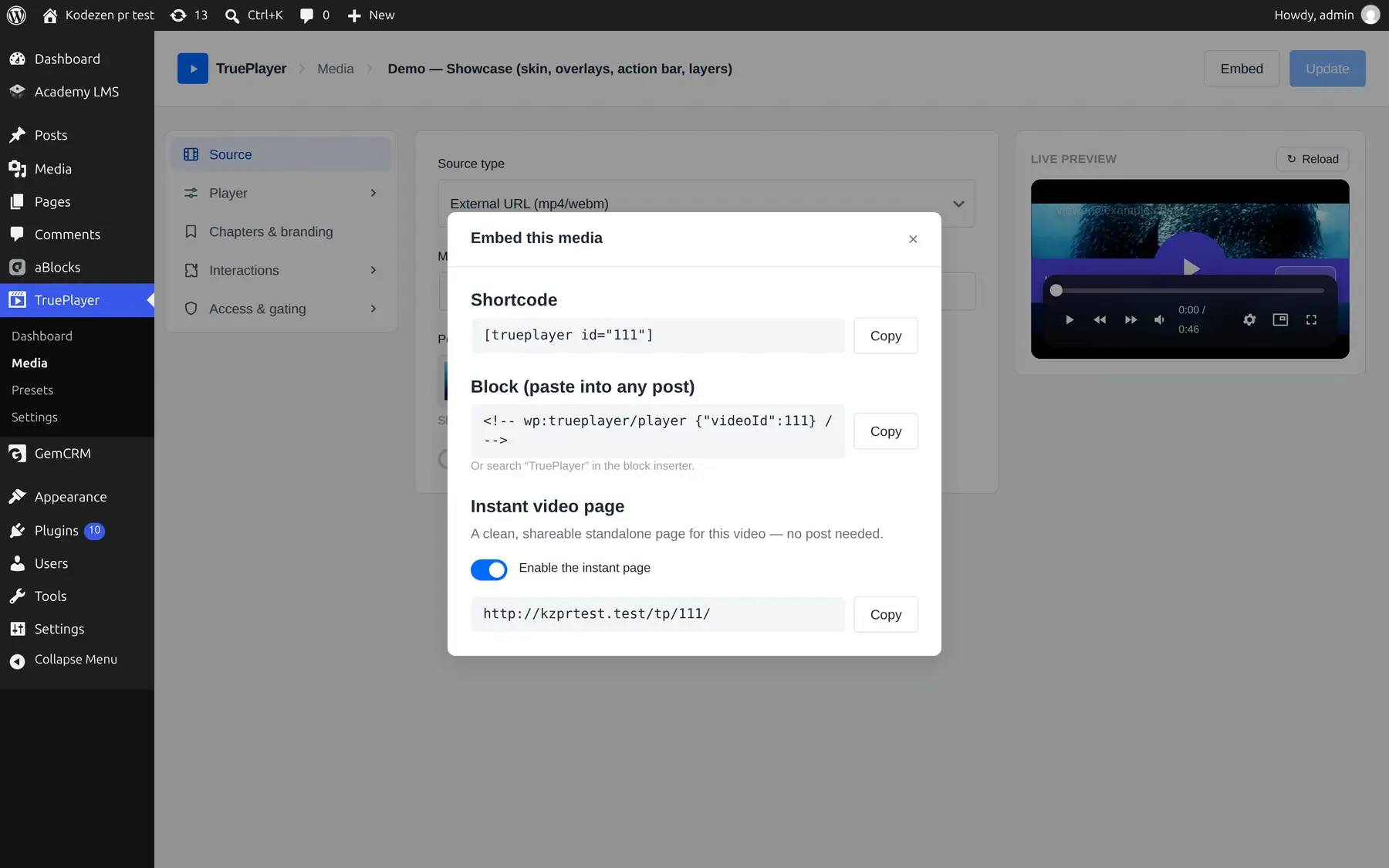
You can also copy it directly from the row in your Media library.
Step 2: Paste It Where You Want the Player
Paste it into any page, post, text widget, or page-builder text block. Publish or update.
That’s it — the player appears exactly where the shortcode is.
Every item’s shortcode uses its own ID. Copy the shortcode from the item you actually want; the number is not something you should guess.
Method 2: The TruePlayer Block
If you work in the WordPress block editor and would rather not handle shortcodes:
- Edit your page or post.
- Click + to add a block.
- Search for TruePlayer and insert it.
- Choose your video from the picker.
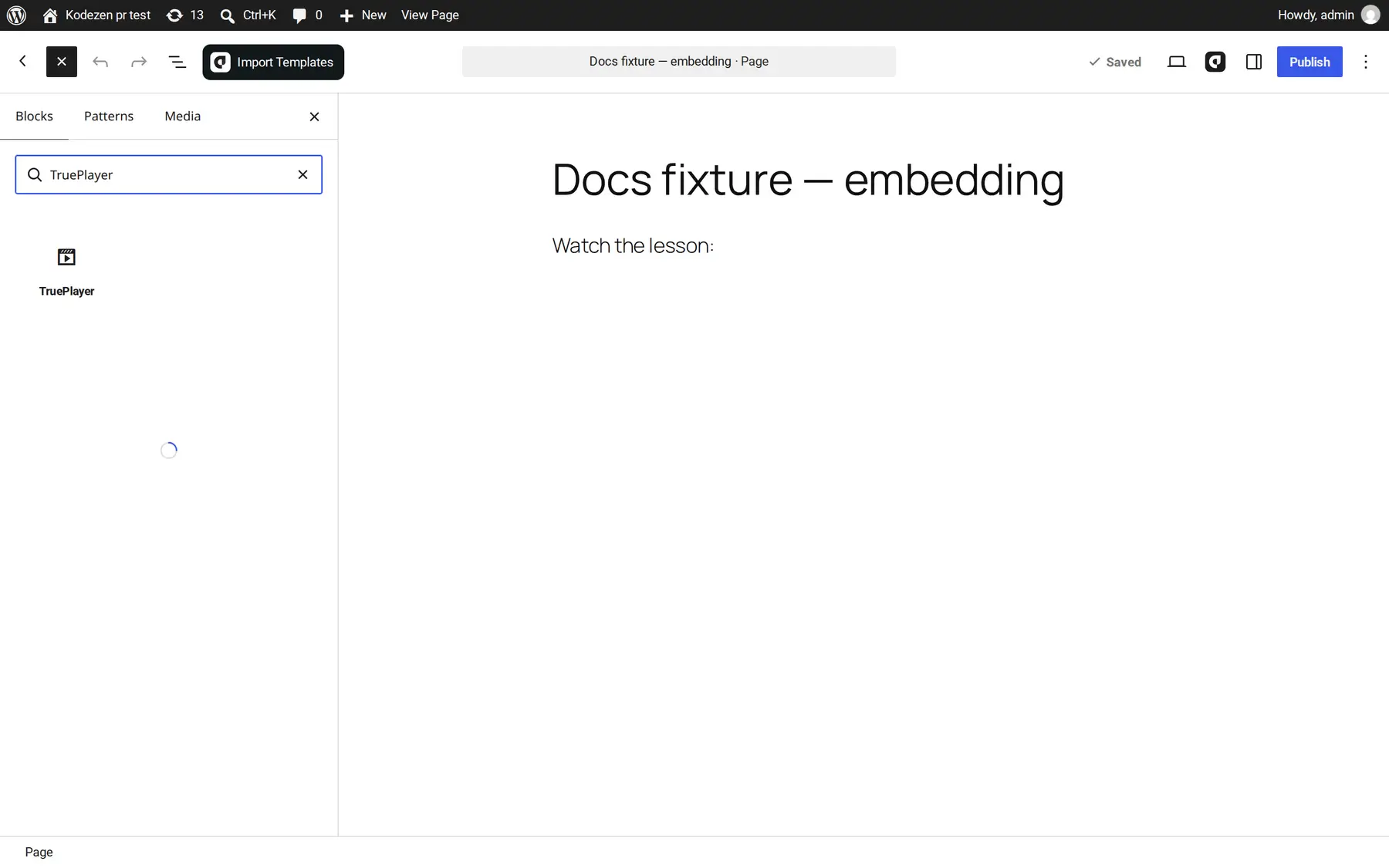
The block renders exactly the same player as the shortcode — it is the same code underneath, just a friendlier way to insert it.
Method 3: The Popup Embed
A button that opens the video in a lightbox over your page. Nothing loads until it is clicked, so it costs your page almost nothing.
With a label:
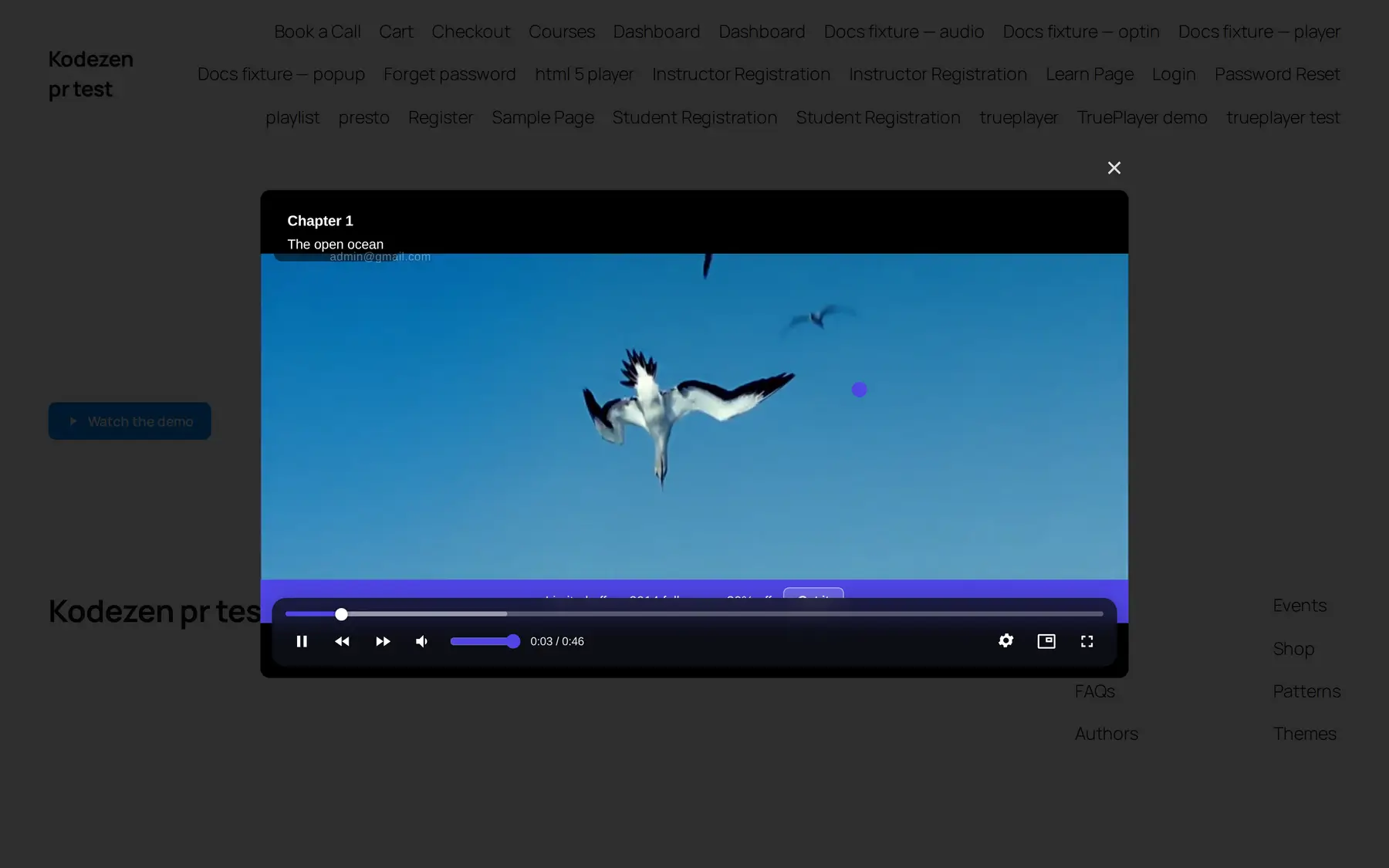
Good for landing pages, where you want a video available without it dominating the layout.
Method 4: Instant Video Pages
Requires TruePlayer Pro.
One switch gives your video its own clean, standalone web page — title, player, description, and nothing else. No theme header, no sidebar, no navigation.
Step 1: Enable It
Open your media item, go to the Embed step, and turn on Enable the instant page.
Step 2: Share the Link
Your video is now available at:
https://yoursite.com/tp/123/
(where 123 is your video’s ID)
Useful for:
- Sharing a video in an email or chat message without building a page for it
- Sending a client a single clean link
- A distraction-free viewing experience
Instant pages are off by default. A video only gets a public page when you deliberately switch it on.
Why Your Pages Stay Fast
Video normally makes pages slow. TruePlayer avoids this by default.
Instead of loading the whole video machinery when the page loads, it renders just a still image with a play button. No video element, no YouTube iframe, no streaming library — none of it loads until someone actually clicks.
The result: a page with videos on it loads about as fast as a page with images on it, and visitors see no difference at all.
Two extra touches:
- Intent warming — when a visitor’s mouse moves toward the video, TruePlayer quietly begins preparing the connection in the background, so the click feels instant.
- No layout shift — the still image matches the player’s exact shape, so nothing jumps around when the real player takes over.
You can change this per video with the Load strategy setting under Player → Behaviour.
Frequently Asked Questions
Can I put more than one player on a page?
Yes, as many as you like. Because of the fast-loading behaviour, several players cost far less than you would expect.
Does the shortcode work in page builders?
Yes — Elementor, Divi, Beaver Builder and others all have a text or shortcode widget that works.
Can I put a player in a sidebar or footer?
Yes. Use a text widget with the shortcode in it.
My shortcode is showing as plain text?
It has probably been pasted into a code block or a field that doesn’t process shortcodes. Paste it into a normal paragraph or a dedicated shortcode block.
Nothing appears where I put the shortcode?
Check the ID matches a real item, and that the item still exists. A shortcode pointing at a deleted video renders nothing rather than showing an error to your visitors.
Can I control the player’s width?
The player fills the container it is placed in, so it follows your theme’s content width. Use the aspect ratio setting to control its shape.