


A preset is a saved bundle of appearance and behaviour settings that you can apply to any video. Build your house style once, then reuse it everywhere.
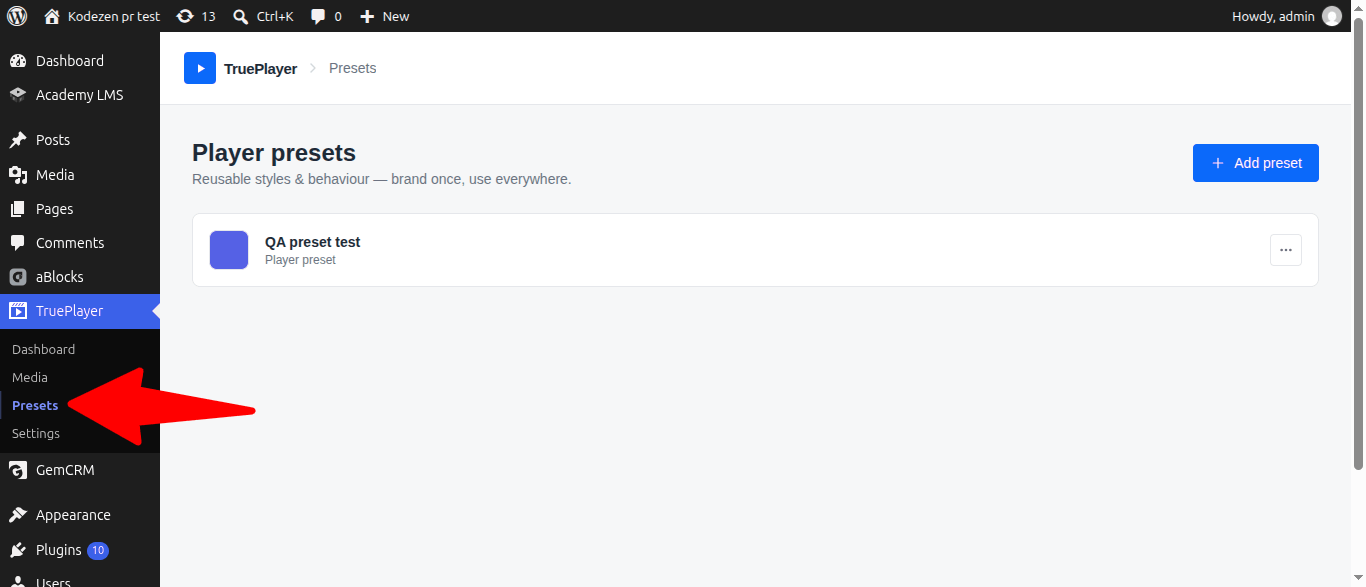
Go to: TruePlayer → Presets
What a Preset Is
A preset stores:
- Appearance — skin, accent colour, aspect ratio, play button style, control bar style, corner roundness, caption styling
- Behaviour — autoplay, loop, save & resume, auto-hide controls, floating, seeking rules, load strategy
- Controls — which buttons are shown
- Playback — available speeds, skip interval
- Branding — logo, position, opacity, link
It does not store anything specific to one video: no source, no chapters, no subtitles, no quizzes.
Why presets are worth the two minutes: without them, a rebrand means editing every video by hand. With them, you edit the preset once and every video using it updates.
Create a Preset
Step 1: Open the Presets Screen
Go to TruePlayer → Presets.
Step 2: Add a Preset
Click Add preset and give it a name. Names that describe use work better than names that describe appearance — “Course lessons” ages better than “Blue rounded”.
Step 3: Configure It
Set the skin, colours, controls and behaviour exactly as you would for a single video.
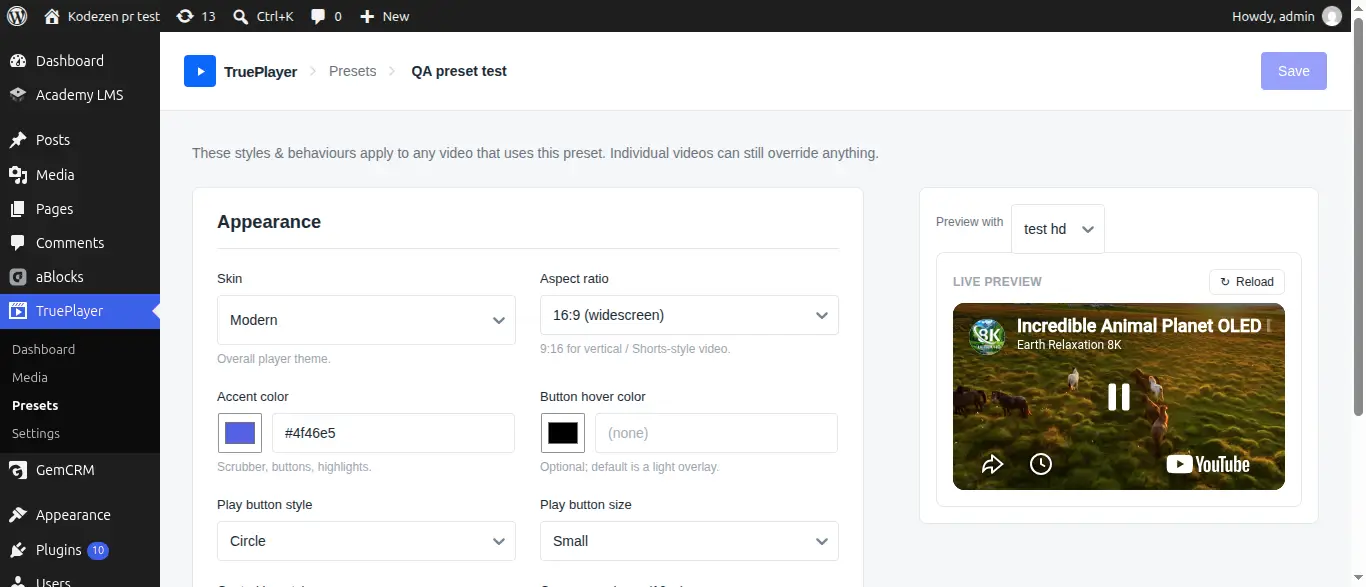
Step 4: Preview It
Use the Preview with control to pick one of your real videos and see the preset applied to it. This is much more reliable than imagining the result.
Step 5: Save
Click Save. The preset is now available to every video on your site.
Apply a Preset to a Video
- Open the media item.
- Go to Player → Appearance.
- Choose your preset from the Preset dropdown.
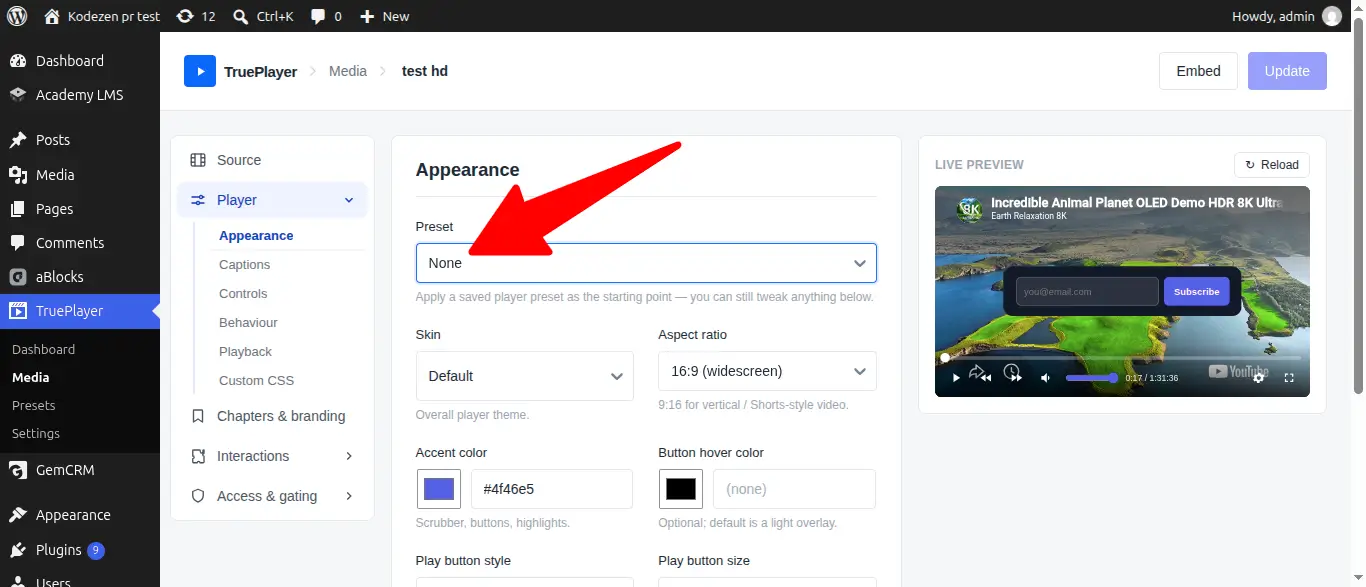
The hint under the field says it plainly: “Apply a saved player preset as the starting point — you can still tweak anything below.”
Set a Default Preset for Your Whole Site
Rather than choosing a preset each time, make one the default:
- Go to TruePlayer → Settings → General.
- Choose your preset under Default preset.
- Save.
Every video that hasn’t chosen its own preset now uses this one — including videos you created before setting it.
Frequently Asked Questions
If I edit a preset, do existing videos change?
Yes — every video using that preset picks up the change, except for settings those videos have overridden themselves.
What happens if I delete a preset that videos are using?
Those videos fall back to your site-wide settings and TruePlayer’s defaults. They keep working; they just lose the preset’s styling.
How many presets can I have?
As many as you need. A few well-named ones beat a dozen near-identical ones.
Can a preset include chapters or quizzes?
No. Presets are about look and behaviour. Content and rules belong to the individual video.
Can I duplicate a preset?
Create a new one and configure it. Presets are quick to build once you know what you want.