


Everything you build in TruePlayer lives in one library — TruePlayer → Media — and there are three kinds of item you can create. This article explains what each one is for so you pick the right one first time.
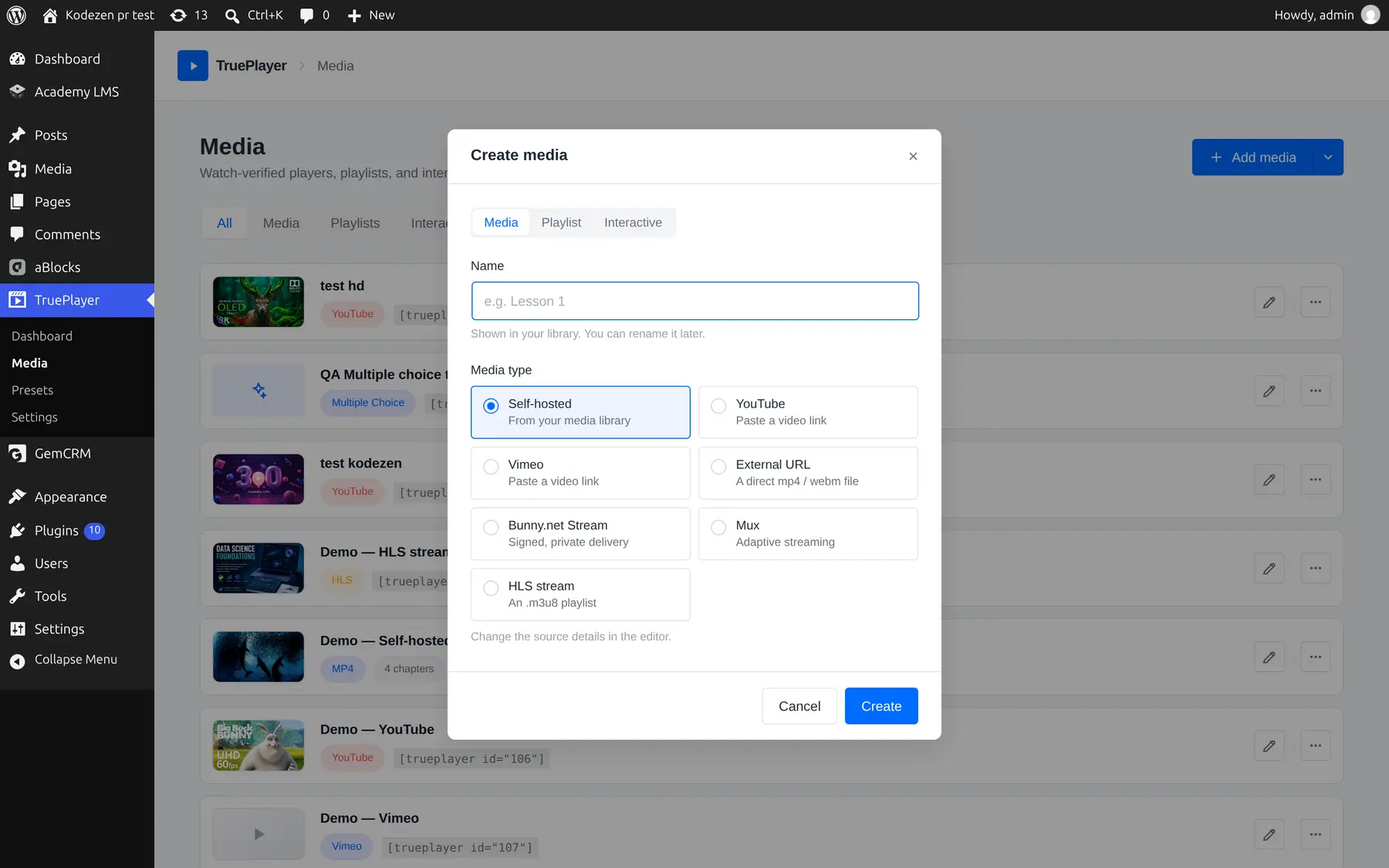
The Three Types
When you click Create in the Media library, you are asked to choose a content type:
|
Type |
Description |
Embed code |
|
Media |
A video or audio player |
|
|
Playlist |
Group players into one embed |
|
|
Interactive |
A quiz, flashcards, and more |
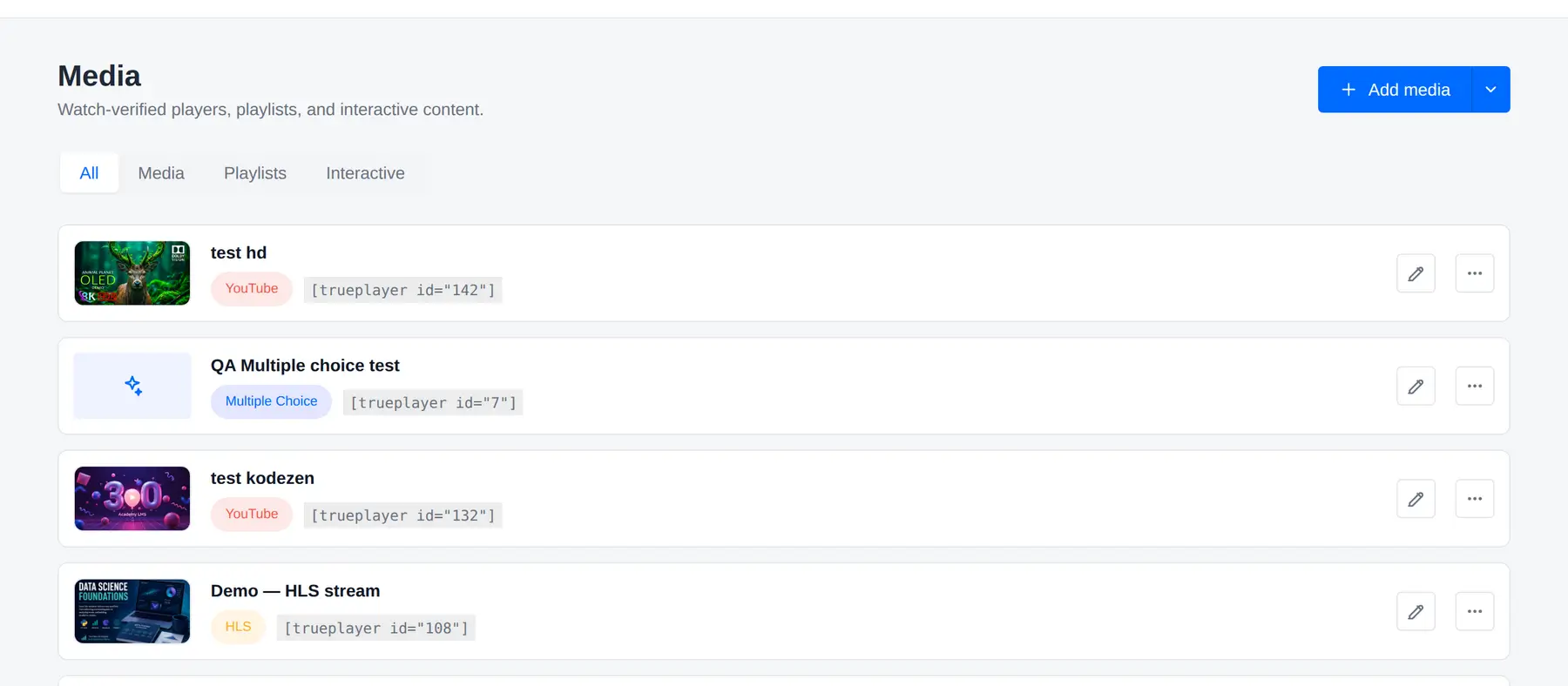
The library has matching filter tabs at the top — All, Media, Playlists, Interactive — so you can narrow a growing library down to what you are looking for.
Media — A Single Video or Audio Player
This is what you will create most of the time: one video (or one audio file) with its own appearance, behaviour, chapters, overlays and gating rules.
Choose Media when you want to:
- Put a single video on a page or post
- Publish a podcast episode with an audio-only player
- Embed a YouTube or Vimeo video using your player and your branding
- Gate one specific video behind a quiz
Media type sub-choice. When creating a Media item you also pick whether it is video or audio. Audio gives you a slim, compact player with no picture area — right for podcasts, interviews and music.
Playlist — Several Players in One Embed
A playlist groups Media items you have already created and shows them together as a series.
Two layouts:
|
Layout |
Looks like |
|
Sidebar |
One large player with a clickable list beside it — like a course module |
|
Grid |
A tidy grid of thumbnails |
You can also turn on autoplay next so the series plays through on its own.
Choose Playlist when you want to:
- Publish a multi-part course or lesson series
- Show a video library or channel page
- Let viewers move between related videos without leaving the page
A playlist contains Media items, so create your videos first, then group them.
Playlists require TruePlayer Pro.
Interactive — A Quiz or Exercise
Interactive items are built with TruePlayer’s interactive engine rather than the video player. Instead of a source URL, you choose a content type — a quiz, flashcards, a drag-and-drop exercise — and author it directly in the admin.
Choose Interactive when you want to:
- Add a standalone quiz or exercise to a lesson
- Build practice material that is not video at all
- Mix interactive exercises into a course alongside your videos
Interactive items live in the same library, appear in the same analytics, and trigger the same automations as your videos. Learner progress is saved automatically, so someone who leaves halfway through returns to where they were.
The Interactive option only appears when the interactive engine is installed on your site. If you don’t see it, your installation does not include it.
Read more: Interactive Content
Which Should I Create?
|
If you want to… |
Create |
|
Put one video on a page |
Media (video) |
|
Publish a podcast episode |
Media (audio) |
|
Show a YouTube video with your branding |
Media (video, YouTube source) |
|
Publish a 6-part course in one embed |
Media × 6, then a Playlist |
|
Add a practice quiz with no video |
Interactive |
|
Gate a training video behind questions |
Media, then use Access & gating |
Frequently Asked Questions
Can I change an item’s type after creating it?
No. Type is chosen at creation. If you picked wrong, create a new item — it only takes a moment.
Can a playlist contain another playlist?
No. Playlists contain Media items only.
Do playlist members keep their own settings?
Yes. Each video in a playlist keeps its own appearance, chapters, overlays and gating rules.
Can I switch a video player to an audio player?
Yes — open the item, go to the Source step and toggle Audio-only (podcast) player.
Do interactive items support quizzes too?
They are largely made of quizzes and exercises. The Access & gating quizzes described elsewhere in these docs are a separate feature that attaches questions to a video.