


A playlist groups several media items and shows them together as one embed — a course module, a video series, or a channel-style library.
Requires TruePlayer Pro.
Example playlists:
- A 6-part onboarding course
- A weekly podcast archive
- A product tutorial series
- A conference session library
What a Playlist Is
A playlist is a container. It does not hold video itself — it references media items you have already created, and each one keeps its own settings, chapters, overlays and gating rules.
That means a playlist can mix a self-hosted video, a YouTube video and a podcast episode, and each still behaves the way you configured it.
Layouts
|
Layout |
Looks like |
Best for |
|
Sidebar |
One large player with a clickable list beside it |
Courses and lesson series, where order matters |
|
Grid |
A grid of thumbnails |
Libraries and archives, where people browse |
Create a New Playlist
Create your media items first. A playlist is built from videos that already exist.
Step 1: Open the Library
Go to TruePlayer → Media.
Step 2: Click Create
Click Create and choose Playlist — described as “Group players into one embed”.
Step 3: Name It
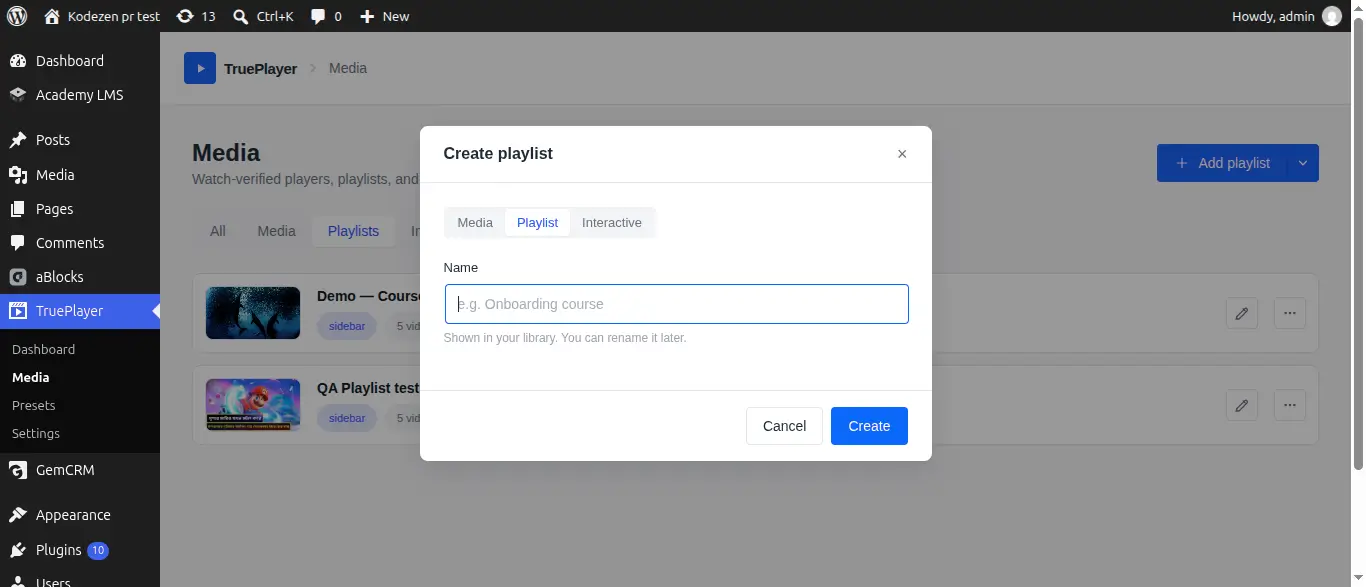
Give the playlist a name, then click Create.
Step 4: Add Your Videos
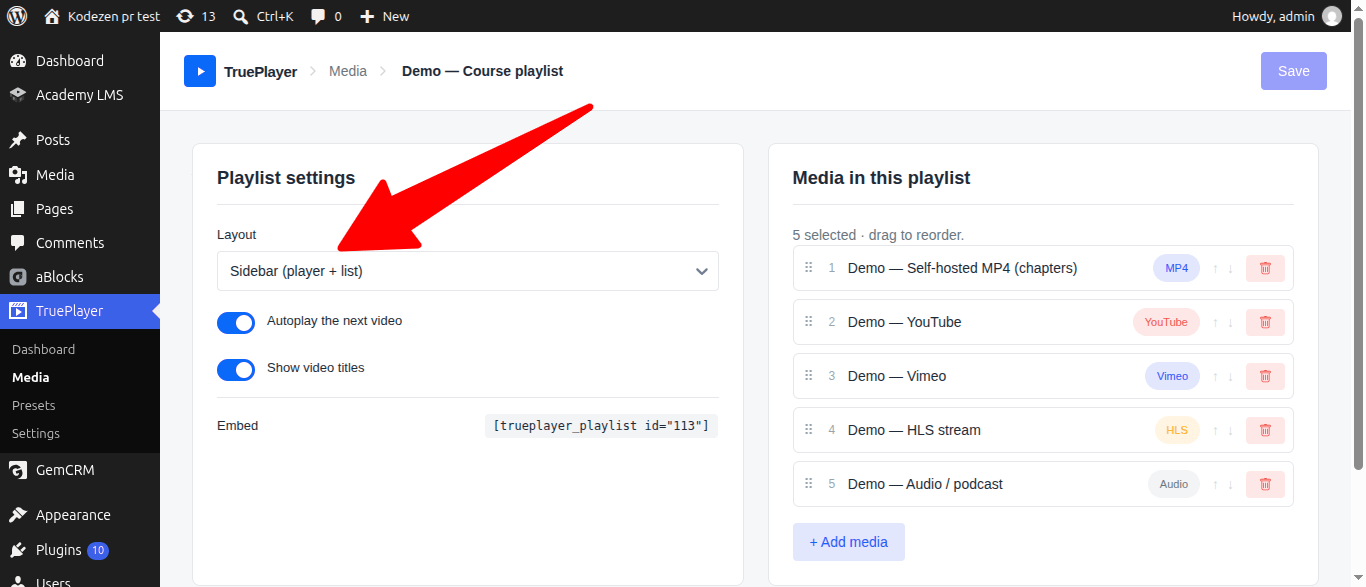
In the Media in this playlist panel, add the media items you want to include.
Step 5: Order Them
Drag the items into the order you want viewers to watch them. For a course, this is the order that matters most.
Step 6: Choose Your Settings
In the Playlist settings panel, set the layout and options described below.
Step 7: Save and Copy the Embed
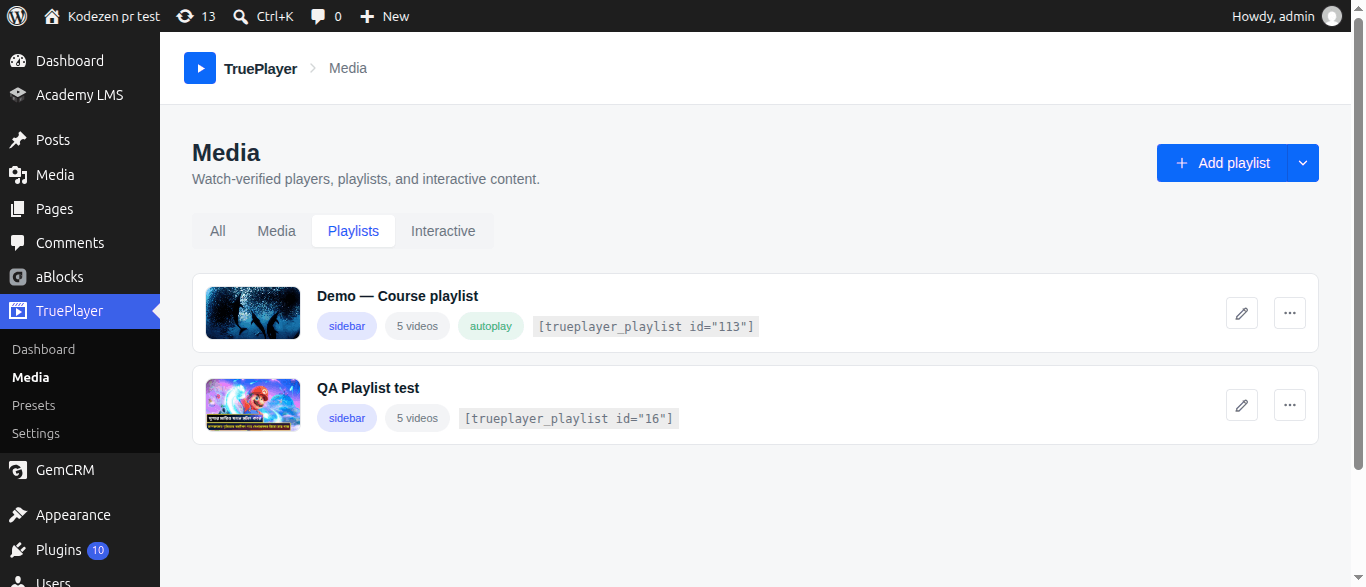
Click Save, then copy the Embed shortcode:
Paste it into any page or post.
Playlist Settings
|
Setting |
What it does |
|
Layout |
Sidebar or grid |
|
Autoplay next |
Automatically start the next video when one finishes |
|
Show titles |
Display each video’s title in the list |
About autoplay next: it works well for a course, where a viewer has committed to a series. It works badly on a browse-style archive page, where it feels pushy. Match it to the intent.
What Viewers Can Do
- See every video in the series at a glance
- Click any item to switch to it, without a page reload
- Continue automatically to the next video, if you enabled it
- Use all the normal player controls on each video
- Resume each video where they left off, if save & resume is on
Each video keeps its own gating too — so a viewer can be free to watch lesson 1 and locked out of lesson 4, inside the same playlist.
Frequently Asked Questions
Can a playlist contain another playlist?
No. Playlists contain media items only.
Do videos in a playlist keep their own settings?
Yes — appearance, chapters, overlays, quizzes and gating all still apply per video.
Can the same video be in more than one playlist?
Yes. Adding it to a playlist doesn’t move it or copy it.
What happens if I delete a video that’s in a playlist?
It simply stops appearing in the playlist. The rest keeps working.
Can I track watch progress across a whole playlist?
Progress is tracked per video. Look at each video’s Analytics for its own numbers.
Do I need Pro for playlists?
Yes. Playlists are a Pro feature