


TruePlayer can collect email addresses inside the player and send them straight to your marketing tool, and it can report player events to Google Analytics.
Requires TruePlayer Pro.
What This Covers
|
Feature |
Where it lives |
|
Connecting a CRM |
Settings → Integrations |
|
In-player opt-in form |
Media item → Interactions → Email capture |
|
Google Analytics events |
Settings → Integrations |
Supported out of the box: Mailchimp and GemCRM. Other tools can be connected via Webhooks, and developers can add full providers of their own.
Connect Your CRM
Mailchimp
Step 1: Get Your API Key
In Mailchimp, go to your account settings and create an API key. It looks like abc123…-us21.
Step 2: Add It to TruePlayer
- Go to TruePlayer → Settings → Integrations.
- Paste the key into the Mailchimp API key field.
- Click Save.
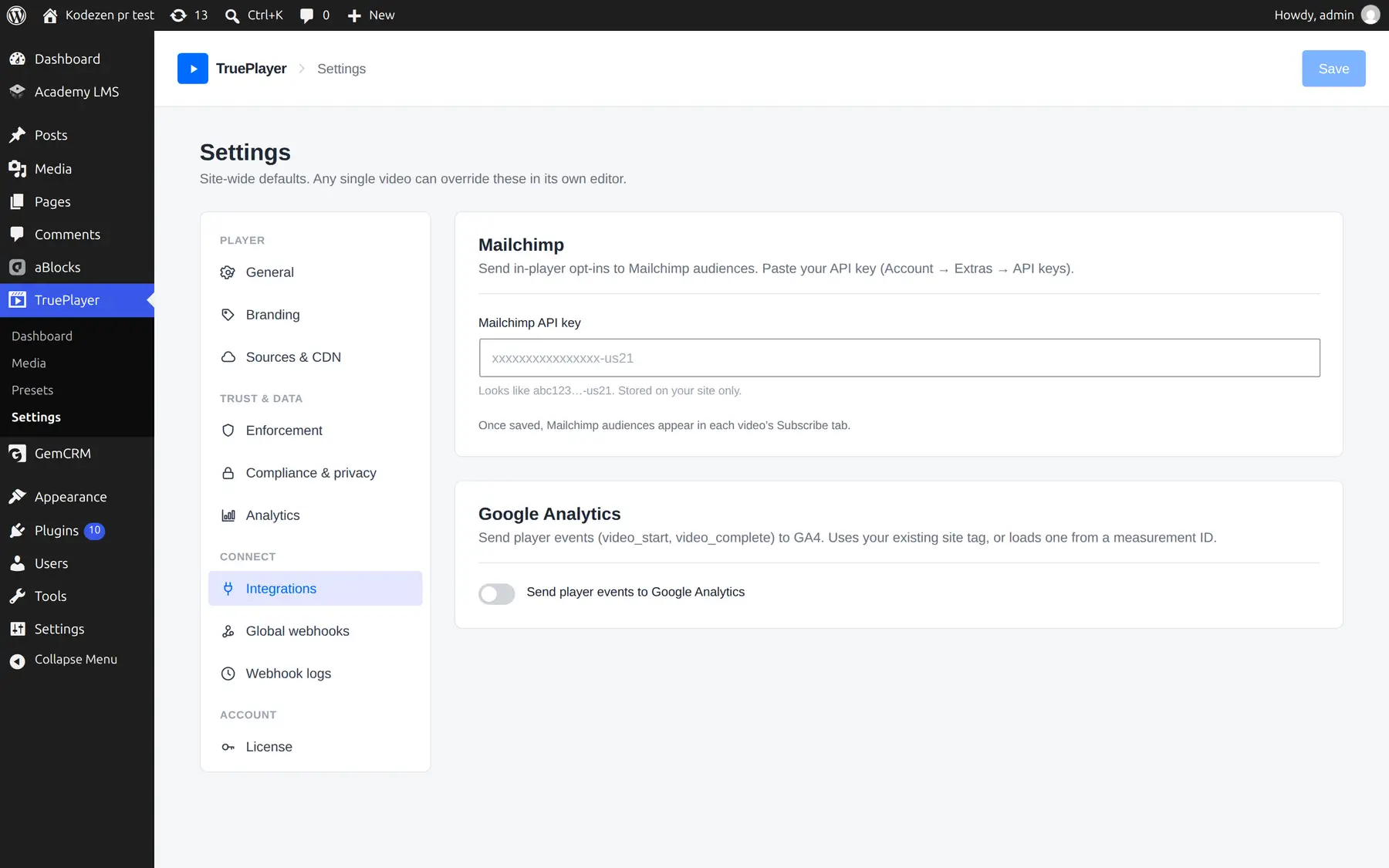
Your key is stored on your own site and used only to talk to Mailchimp directly. It is never sent anywhere else.
Step 3: Confirm
Once connected, your Mailchimp audiences become selectable when you build an opt-in form.
GemCRM
If the GemCRM plugin is installed and active on your site, TruePlayer detects it automatically — no key needed. Its lists and tags appear in the opt-in form settings.
Add an Email Capture Form to a Video
Step 1: Open the Interactions Step
Open your media item → Interactions → Email capture.
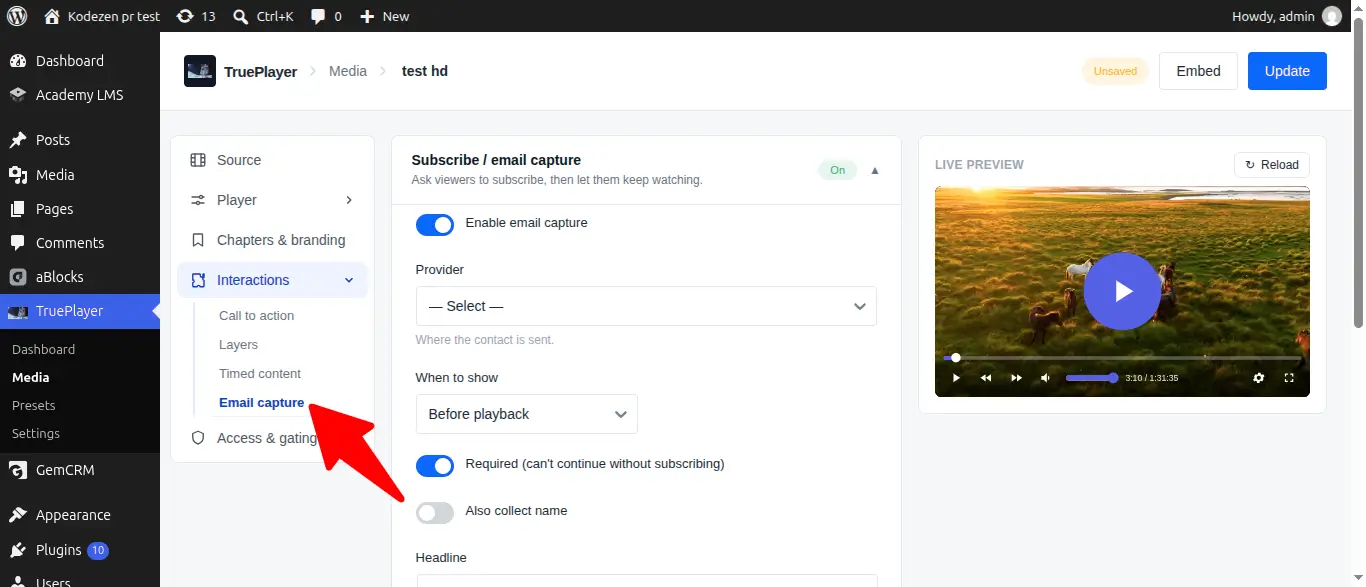
Step 2: Turn It On
Enable the opt-in and choose:
|
Setting |
What it does |
|
Provider |
Which connected CRM receives the contact |
|
Lists / tags |
Which audience, list or tag to add them to |
|
Headline and text |
What the form says |
|
Button label |
e.g. “Send it” |
|
When it appears |
At a chosen time, or at the end |
Step 3: Save
Click Save. The form now appears inside the player at the moment you chose.
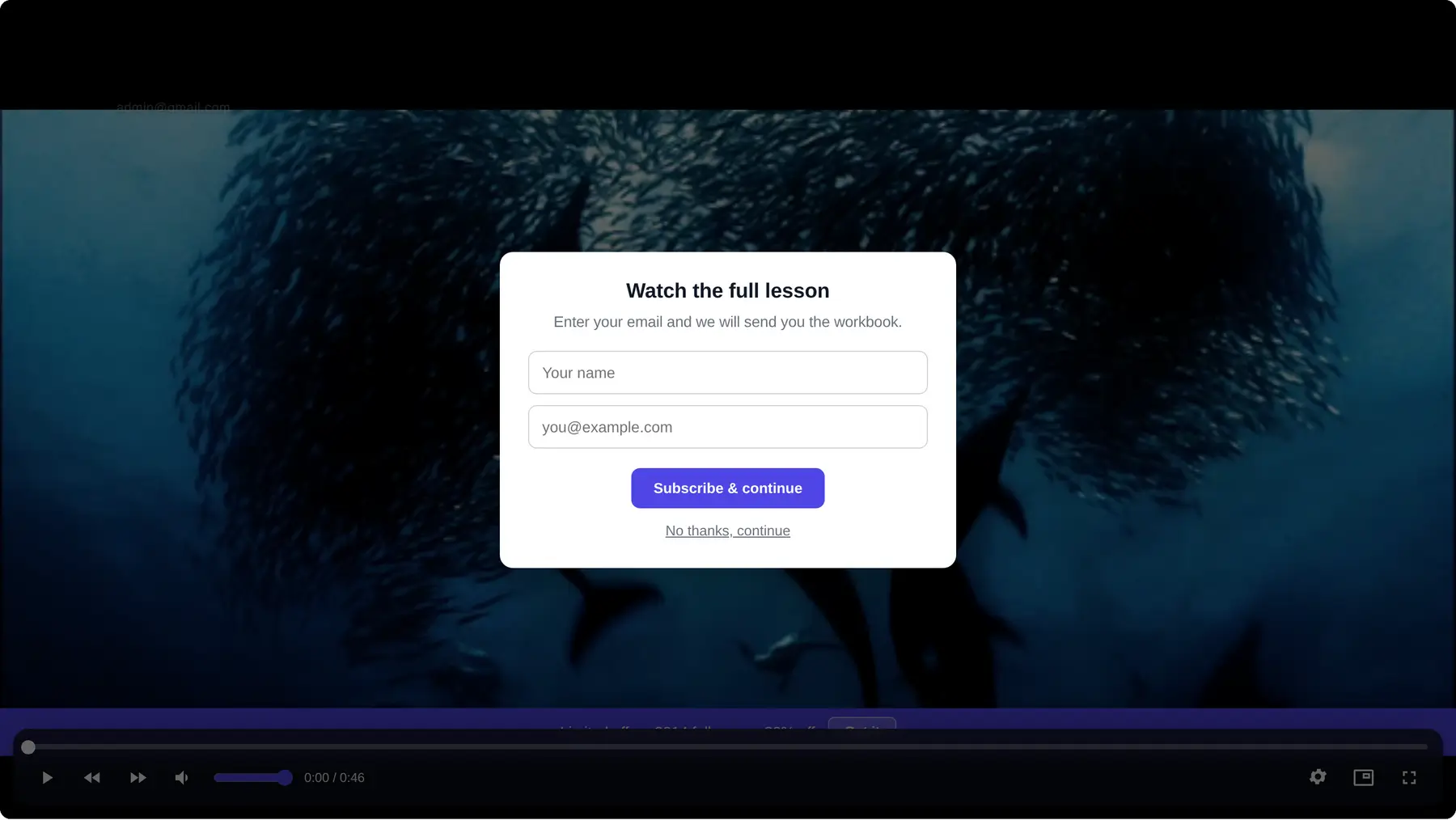
The destination is decided on your server. Which provider and which list a submission goes to is read from the video’s saved settings, not from the browser — so a submission cannot be redirected somewhere else by tampering with the page.
What Happens on Submission
- The contact is added to your chosen list or tag.
- A subscriber.added event fires, so your webhooks see opt-ins too.
- The viewer continues watching.
Google Analytics
TruePlayer can report player activity to GA.
Step 1: Enable It
- Go to TruePlayer → Settings → Integrations.
- Turn on Send player events to Google Analytics.
Step 2: Measurement ID (Optional)
Leave the Measurement ID field blank to use the GA tag already on your site. Fill it in only if you want TruePlayer’s events to go to a different property.
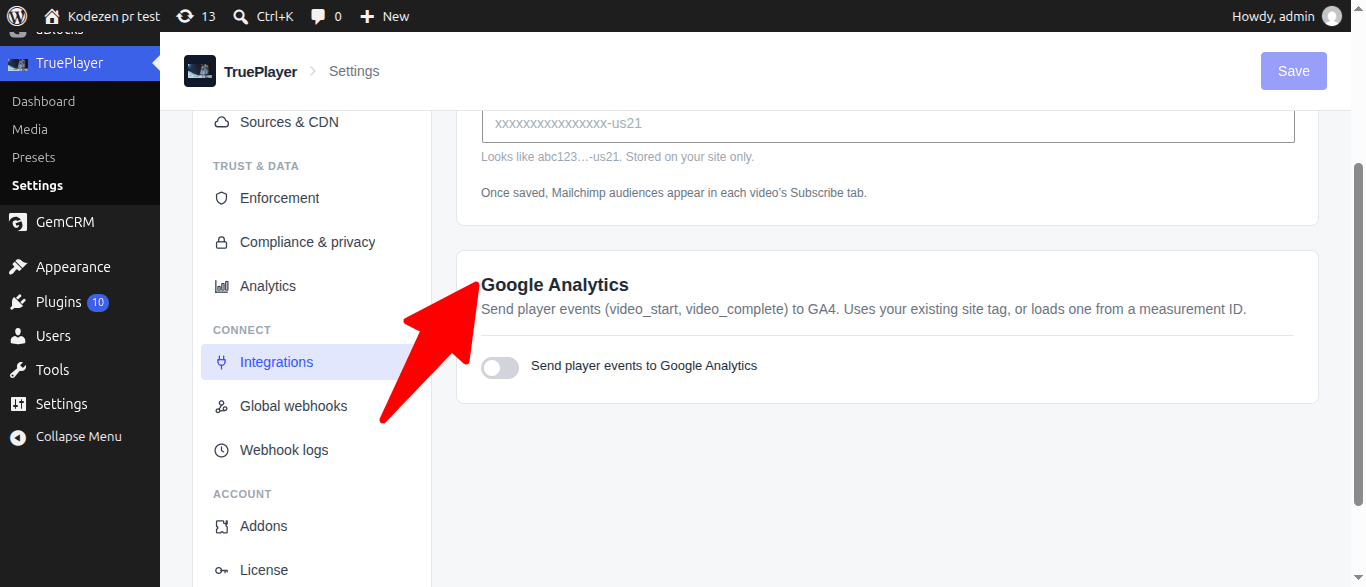
Step 3: Save
Player events — plays, progress and completions — now appear alongside the rest of your site analytics.
GA gives you playback events. For genuine watch data — coverage, retention, quiz results — use TruePlayer’s own Analytics screen. The two answer different questions.
Frequently Asked Questions
Which CRMs are supported?
Mailchimp and GemCRM are built in. Anything else can be connected with a webhook, which is enough for Zapier, Make, HubSpot, ActiveCampaign, ConvertKit and most others.
Can I require an email before the video plays?
Set the opt-in to appear at the very start and make it non-dismissible.
What happens if my CRM is down?
The submission fails and the viewer sees an error. Use webhook logs to spot a repeated problem.
Can I use the opt-in without a CRM connected?
The form needs somewhere to send the contact. Connect a provider, or use a webhook to receive submissions in your own system.
Are opt-ins tied to watch tracking?
They are separate features but they cooperate — a subscriber.added event flows through the same event system as watch and quiz events, so one webhook can receive all of them.
Can I hide the form from people already on my list?
Yes — use a conditional rule such as “is a CRM contact”.